
You finally finished that PDF for a client, and then you remember: it needs your logo on every page. So you start hunting for a desktop app. You download an installer, wait for it to load, fight with a popup asking for an upgrade, and then discover the free version stamps its own watermark across your work. That's the pain. Slow installs, wrong apps, messy files. There's a faster way.
You can add a watermark right in your browser, with no installs and no clutter. This guide shows you how, using HubTools' watermark tool. It takes seconds, not minutes.
What usually goes wrong
Here are the three mistakes people make when they need to watermark a PDF:
- They install a full desktop suite just for one watermark. That's overkill. You end up with a giant program you rarely use, eating up disk space.
- They pick a free app that leaves its own watermark on your output. Now you have to pay to remove it, or you ship a document with someone else's branding.
- They upload to a random site without checking privacy, then worry about where their file ended up. Not all online tools are trustworthy.
None of that is necessary. The right browser tool solves all three problems.
The HubTools path
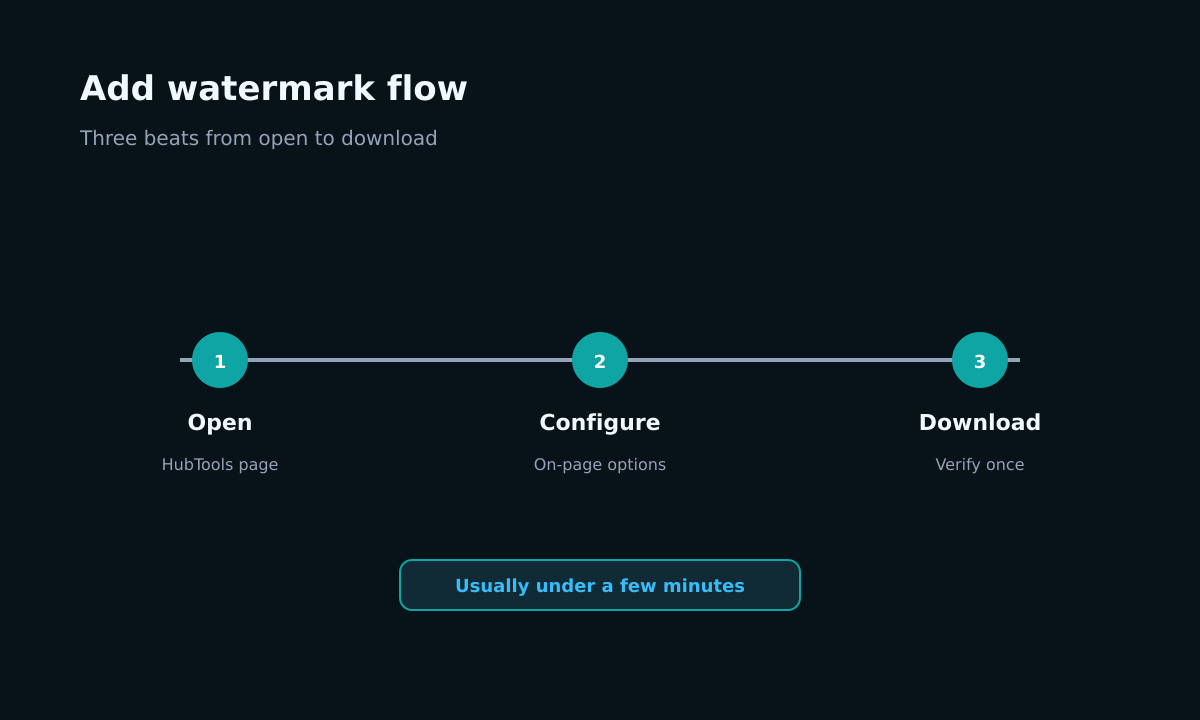
Here's the whole process. It's short.
- Open https://hubtools.co/tool/watermark in your browser. It works on any modern browser, no sign-up required.
- Upload your PDF file. You can drag and drop it or click to browse.
- Choose what kind of watermark you want: text or image. If you pick text, type your phrase. If you pick image, upload your logo (PNG with transparency works best).
- Adjust the position. You can move the watermark around the page, or center it. The tool gives you a live preview, so you see exactly where it lands.
- Set the opacity. A common mistake is making the watermark too dark, which distracts from the content. A 30-50% opacity usually looks professional.
- Click the button to apply the watermark. The tool processes your file and gives you a download link.
- Download your new PDF. It's ready to send.
That's it. No installs, no waiting for a bloated app to launch, no extra steps. You're done in under a minute.
Pro tip: use a transparent PNG for your logo
If you're adding an image watermark, make sure your logo file has a transparent background. Otherwise, you'll get a white box behind the logo, which looks sloppy. A quick way to check: open the image on a dark background. If you see a white rectangle, it's not transparent. Most design tools can export a transparent PNG.
When a desktop app still makes sense
Browser tools handle 95% of watermarking tasks. But there are edge cases. If you need to watermark hundreds of PDFs in a batch, or you need advanced features like variable watermarks (different text per page), a dedicated desktop program might be worth the install. Also, if you're working offline in a sensitive environment where you can't upload files to any online service, a local app is the only option.
But for the occasional watermark, or even regular use, the browser tool is faster and simpler. You don't have to maintain software updates or worry about compatibility.
Quality checklist before you share
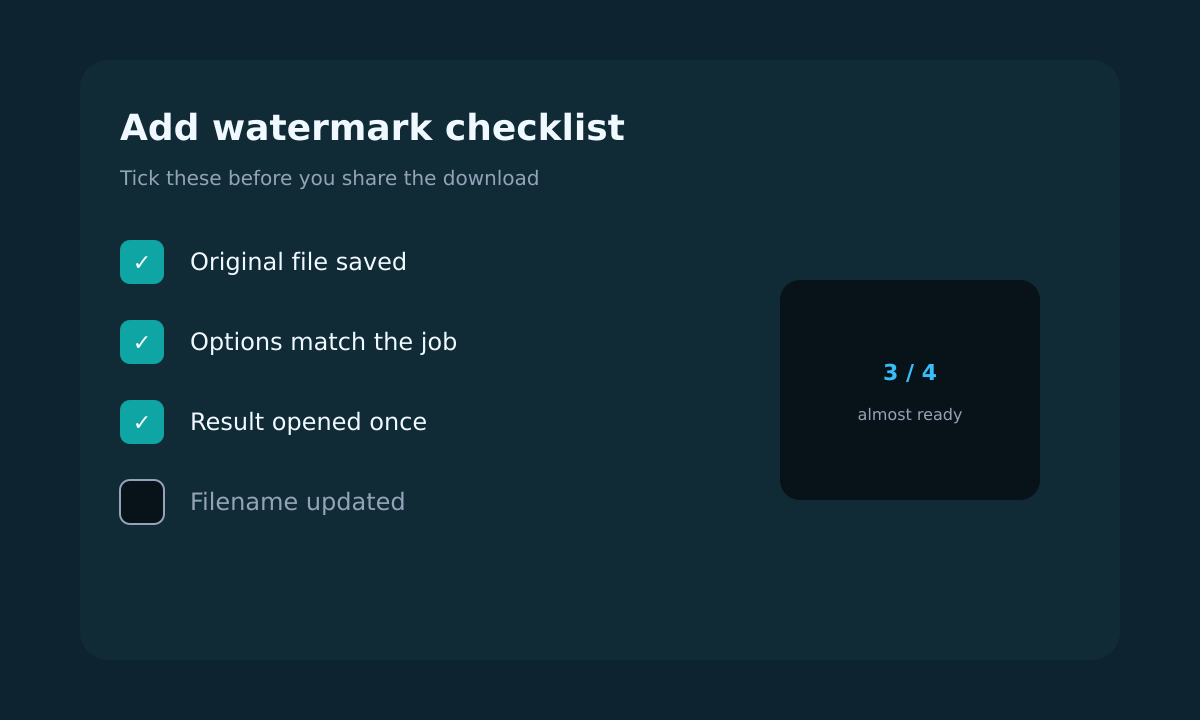
Before you send that watermarked PDF, do a quick check:
- Check the filename. Make sure it doesn't say 'watermarked' unless that's what you want. A client might not appreciate seeing that.
- Spot-check a few pages. Open the PDF and scroll through. Confirm the watermark is visible on every page, not just the first one. Sometimes tools only apply to the first page if you don't set it right.
- Keep the original. Always keep the un-watermarked original. You might need to make changes later, and you don't want to redo the watermark from scratch.
These small habits save you embarrassment later.
Devices that work
Windows and Mac
Any modern browser on Windows or Mac works fine. Chrome, Firefox, Edge, Safari, all of them. No special plugins needed. The tool runs in the browser, so it's cross-platform by default.
Mobile
Yes, it works on phones and tablets too. If you're on the go and need to watermark a PDF quickly, you can do it from your phone. The interface is touch-friendly, and you can upload from your camera roll or files app. Just make sure you have a decent internet connection.
Quick comparison: browser tool vs. desktop app
| Feature | Browser tool (HubTools) | Desktop app |
|---|---|---|
| Installation | None | Required |
| Time to first use | Seconds | Minutes |
| Disk space | 0 MB | Hundreds of MB |
| Updates | Automatic, nothing to do | Manual, occasional |
| Works on mobile | Yes | Often not |
| Batch processing | One at a time | Possible |
For most people, the browser tool wins on convenience. The desktop app only pulls ahead if you have a heavy, repetitive workflow.
If something breaks
Sometimes things go wrong. Here are a few common issues and fixes:
- The uploaded file won't process. Check that your PDF isn't corrupted or password-protected. If it's protected, you need to remove the password first.
- The watermark looks pixelated. That's usually because the image you uploaded is too small. Use a higher-resolution version of your logo.
- The download doesn't start. Try refreshing the page and uploading again. Sometimes a browser extension blocks downloads.
- The watermark isn't visible enough. Increase the opacity or use a bolder font. Test with a sample page first.
If none of that helps, try a different browser. The tool is tested on all major ones, but an outdated browser can cause odd behavior.
What to remember
Watermarking a PDF doesn't have to be a hassle. You don't need a heavy desktop suite. You don't need to create an account. You just need a reliable browser tool that respects your time and your privacy.
With HubTools' watermark tool, you upload, adjust, and download. The process is quick, free, and works on any device. Your original file stays untouched, and you get a clean, professional result.
Next time you're about to install something just to add a watermark, pause. Open your browser instead.
Try it on HubTools
HubTools is free in your browser at hubtools.co. Open Add watermark for this job, or browse more PDF and file tools on the same site with no install.
Start here: https://hubtools.co/tool/watermark · All HubTools
Recommended HubTools
More free tools live at hubtools.co. Start with these:
Check your internet speed
When file tools feel slow, test the connection first. Run a free speed check on SpeedTesters (speedtesters.co) , then come back to this guide on Add Watermark Without the Hassle: A Practical Guide.

Comments