You double-click a PDF and get nothing. An error message. A blank screen. Or worse, a file that opens but shows garbled text and missing images. That moment of panic is real, especially when the file is an invoice, a contract, or a report you need to submit in an hour.
Most people react by downloading a heavy desktop app, waiting for it to install, and then fighting with a confusing interface. That is the slow path. The fast path is a free online repair tool that works in your browser, no installs, no clutter.
Here is how to fix a damaged PDF without the hassle.
What usually goes wrong
Three common mistakes make the situation worse:
- Downloading the wrong software. You search for a PDF repair tool and end up with a trial version that only shows a preview, then asks for money. You waste time and still have a broken file.
- Installing bloatware. Many desktop repair apps bundle extra programs you do not want. You clean up your system afterward, which adds more frustration.
- Editing the original file. Some people try to fix the PDF by hand, renaming extensions or opening it in a text editor. That usually makes the corruption worse and reduces the chance of recovery.
Avoid these traps. Use a dedicated online repair tool that is built for this exact job.
The HubTools path
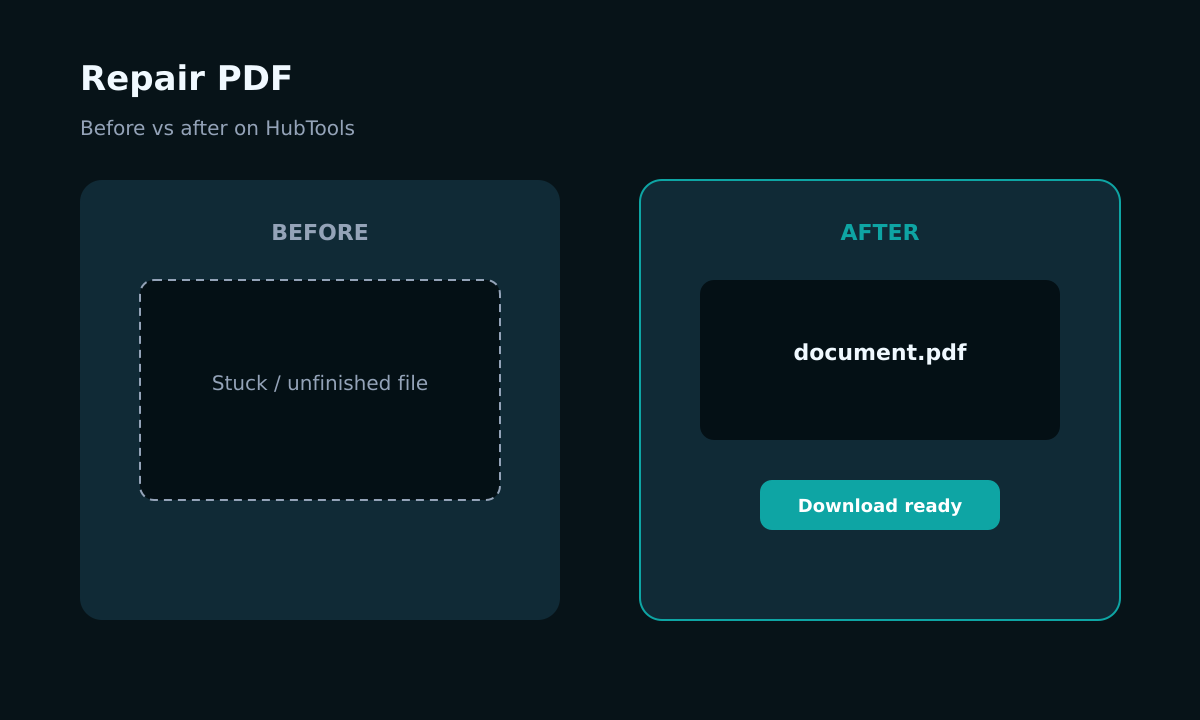
HubTools Repair PDF is a free browser-based tool that rebuilds damaged PDF files. No account needed, no credit card, no download.
Here is the full walkthrough:
- Open your browser and go to hubtools.co/tool/repair-pdf. The page loads in seconds.
- Click the upload area and select the damaged PDF from your computer. The tool accepts standard PDF files up to a reasonable size.
- Wait while the tool analyzes and rebuilds the file structure. This usually takes a few seconds to a minute, depending on file size.
- Click the download button to save the repaired PDF to your device.
That is it. You go from error to fixed file in under two minutes. No installation, no command line, no stress.
Imagine this scenario: you are at a coffee shop, a client emails you a PDF that will not open. You open HubTools on your phone, upload the file, and download the repaired version. You reply with the fixed attachment before your latte is ready.
Pro tip
Before you upload, rename the damaged file to something short without special characters. Some corruption stems from file name issues, especially when the PDF was downloaded from a web form or email attachment. A clean name like "report.pdf" helps the tool process it smoothly.
When a desktop app still makes sense
If your PDF is severely corrupted, such as from a hard drive failure or a failed download that truncated the file, an online tool may not recover everything. In that case, a dedicated desktop app like Adobe Acrobat Pro or a specialized recovery suite can attempt deeper reconstruction. But for the vast majority of everyday errors, the online path is faster and cleaner.
Quality checklist before you share
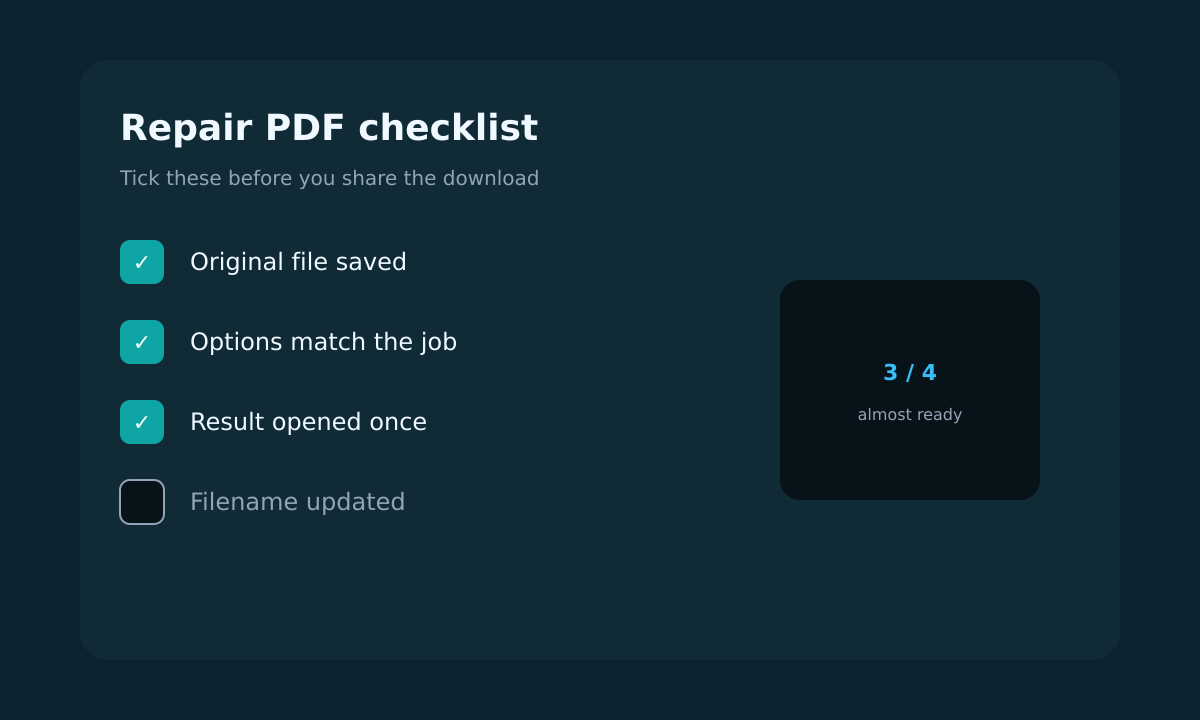
After you download the repaired PDF, run through this quick check:
- Check filenames. The tool keeps your original name, so it should be recognizable. If the name is generic, rename it to something descriptive.
- Spot-check content. Scroll through a few pages to confirm that text, images, and layout look correct. If something is missing, try the repair again with the original file.
- Keep the original. Do not delete the damaged file right away. If the repaired version has issues, you can try again or use an alternative method.
Devices that work
Windows and Mac
Open any modern browser, Chrome, Firefox, Edge, or Safari. The tool works identically on both operating systems. No plugins or extensions are needed.
Mobile
You can use the tool on your phone or tablet. The upload interface adapts to smaller screens. If you are on an iPhone, use Safari or Chrome. On Android, Chrome works best. The process is the same: upload, wait, download.
The only caveat is that mobile browsers may have limitations on file management. You might need to save the repaired file to your cloud storage or email it to yourself. That is a minor extra step.
Quick comparison
| Method | Time | Cost | Install needed |
|---|---|---|---|
| HubTools Repair PDF | Under 2 minutes | Free | No |
| Desktop repair app | 10+ minutes | Often paid | Yes |
| Manual edit | High risk | Free | No |
The online tool wins on speed, cost, and simplicity for most cases.
If something breaks
Two common issues and how to handle them:
- The tool says the file is invalid. This usually means the PDF is too damaged or is not a real PDF. Try renaming the file with a .pdf extension and uploading again. If that fails, the file may be beyond repair.
- The repaired PDF is smaller than the original. That can happen if the tool could not recover some content, such as images or embedded fonts. The text is often still readable. Check the output carefully before discarding it.
If you still have trouble, you can combine HubTools with other free utilities. For example, use Compress PDF to reduce a large file, or OCR PDF to extract text from a scanned document that is partially corrupted.
What to remember
Repairing a PDF does not have to be a project. When you see an error, take a breath and go to HubTools. Upload the file, download the fix, and move on. Keep a copy of the original until you confirm the repaired version works. And if you regularly work with PDFs, bookmark the tool so you can find it instantly.
Recommended HubTools
All tools are free and browser-based:
- Repair PDF - Fix damaged files and recover data.
- Compress PDF - Reduce file size without losing quality.
- OCR PDF - Extract text from scanned PDFs.
- Merge PDF - Combine multiple PDFs into one file.
- Split PDF - Separate pages into individual files.
Comments