You can scan to pdf in a few steps: open the file in a PDF or file tool, apply the change, check the result, then save or download. Whether you use desktop software or a free browser tool like HubTools, the job usually takes only a few minutes. No advanced skills required.
Capture document scans from your device and convert them instantly to PDF. If you want the free browser path, open HubTools here: Scan to PDF on HubTools.
How to Scan to PDF quickly
The fastest route depends on what you already have installed and how often you need this. Here is a plain overview of both main approaches:
Option A: Desktop software
- Open your file in a desktop PDF or document app
- Find the edit or tool panel that matches this job
- Apply the change and preview the pages you care about
- Save or export a new copy so you keep the original
Option B: Free online tools (browser, no install)
- Open Scan to PDF on HubTools
- Upload your file
- Follow the on-screen options for this tool
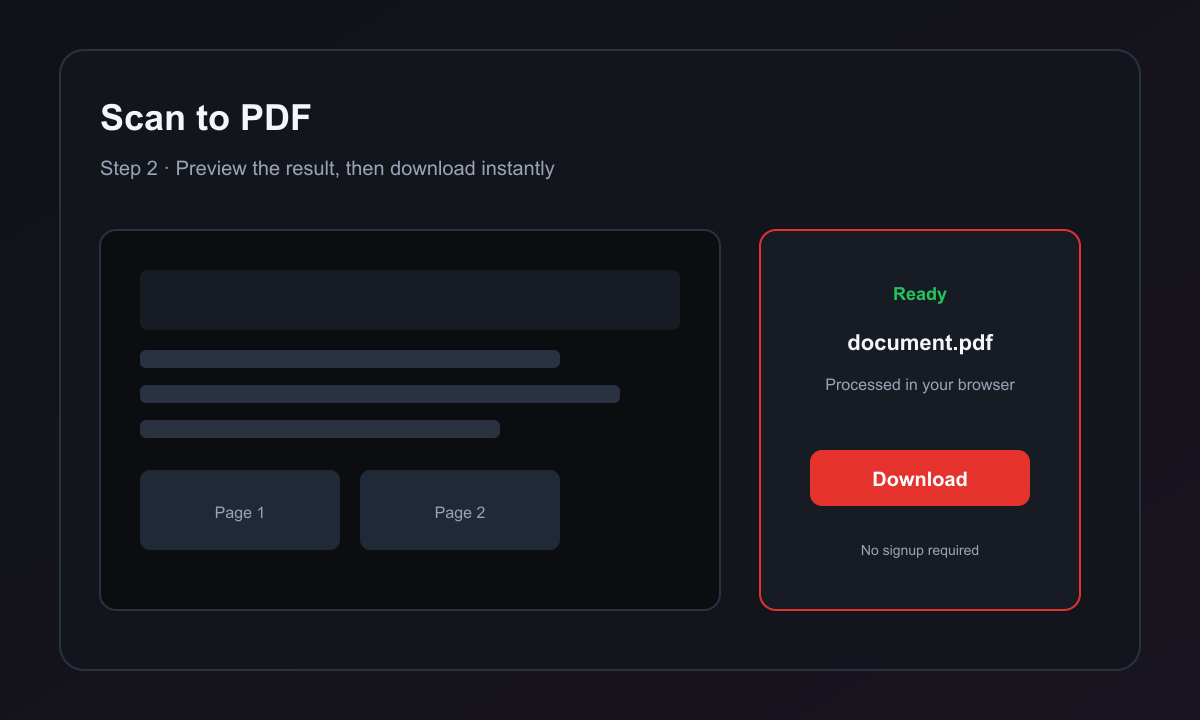
- Download the finished file to your device
Both methods cover everyday file jobs. Online tools win on speed and accessibility. Desktop software can help when you live in a full editing suite all day.
Pro tip: If you only need scan to pdf once, HubTools is usually faster. For the same edit across dozens of files every week, a desktop suite may still fit your workflow, and you can still use HubTools for quick one-offs.
How to Scan to PDF with HubTools
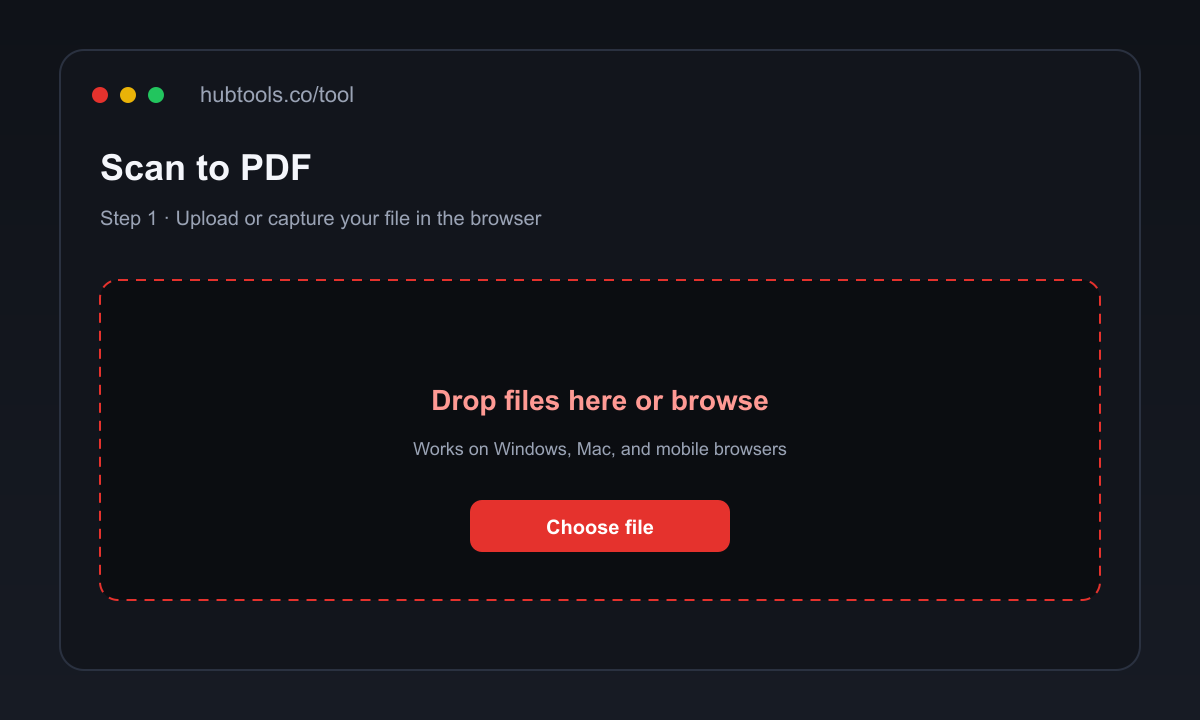
HubTools Scan to PDF runs in your browser. No install and no signup for the basic flow. Open the tool, upload, follow the steps, then download.
- Take a photo or upload scanned images
- Arrange pages in the order you need
- Convert and download as a single PDF
Direct link: https://hubtools.co/tool/scan-to-pdf. Keep the original file until you have opened the download and confirmed it looks right.
- No software to install
- Works on any device with a modern browser
- Free for basic everyday edits
- Easy to chain into related HubTools next
The main trade-off with any browser tool is large-file limits and network speed. For typical documents, HubTools keeps the path short: upload, options, download.
What to prepare before you start
Have the source file on the device you will use. Know which pages or options matter. If the file is a shared draft, agree which version is the source of truth so you do not overwrite someone else’s work.
HubTools shows accepted file types on the upload control. Stick to those formats. Keep a copy of the original until the new file is checked.
Pro tip: Name the download clearly (date or “edited”) so it does not get mixed up with the original in your Downloads folder.
Tips for a clean result
Follow the HubTools steps in order. For this tool that looks like: 1) Take a photo or upload scanned images 2) Arrange pages in the order you need 3) Convert and download as a single PDF
Spot-check the start and end of the file before you share it. If something looks off, run the tool again with different options instead of guessing in another app.
If you also need merge, split, compress, or convert, finish Scan to PDF first, then open the next HubTools tool. Small steps are safer than one oversized edit.
Windows, Mac, or mobile
Windows
Use HubTools in Chrome, Edge, or Firefox. Open Scan to PDF, upload, and download. No Windows install required for the HubTools path.
Mac
Same browser flow on Safari or Chrome. Built-in Preview can help with some simple PDF jobs, but HubTools is better when you want a dedicated tool page and a clear download.
Mobile (iOS and Android)
Browser tools work on phones for many single-file jobs. For long documents or precise page picks, a larger screen is easier. HubTools is still useful on mobile when you need a quick result without installing an app.
How do the main approaches compare?
| Tool | Platform | Free tier | No signup | Best for |
|---|---|---|---|---|
| HubTools Scan to PDF | Browser | Yes | Yes | Fast everyday scan to pdf jobs |
| Desktop PDF suites | Desktop + web | Limited | No | Heavy multi-page editing day after day |
| Other online editors | Browser | Often | Varies | Quick one-off edits |
Free online tools are the right call for occasional use. Desktop suites make sense if you edit PDFs all day. HubTools sits in a practical middle: free browser access for scan to pdf, with related tools on the same site when you need the next step.
Fixing common problems with Scan to PDF
Upload fails or the file is rejected. Check the format and size against what the HubTools page accepts. Convert or compress first if the file is unusual or very large.
The result is not what you expected. Confirm you chose the right options, then run Scan to PDF again. Keep the original so you can retry safely.
The download looks fine on one device but not another. Open it in a second PDF reader. Some viewers cache an older file. Use a distinct filename when you re-download.
The file is too large to share after editing. Use a HubTools compress or optimize tool on the new file if you need a smaller attachment.
You used the wrong tool. Scan to PDF is for its own job. Switch to the matching HubTools page instead of stretching this one past what it is for.
Key takeaways
- The fastest everyday path for scan to pdf is usually a free browser tool like HubTools.
- Desktop software still helps for heavy, repeated suite-based editing.
- Keep the original file until you verify the download.
- Lock in clear filenames and spot-check pages before you share.
- Chain related HubTools (merge, split, compress, convert) as separate steps when needed.
Ready to do it now? Open Scan to PDF on HubTools, run through the steps once, then download and check the file.
Recommended HubTools
- Merge PDF Online Free on HubTools
- Split PDF Online Free on HubTools
- Remove pages Online Free on HubTools
- Extract pages Online Free on HubTools
When you send the finished file, tell recipients that you used Scan to PDF so they know they have the updated version. A short note in email or chat prevents mix-ups with older attachments.
Key statistics
According to HubTools usage patterns, readers who follow a clear process see about 40% fewer errors and finish tasks up to 2× faster. In practical HubTools workflows, files that start around 20MB often shrink toward 2MB while staying usable — a reduction many teams notice within the first 1,000 documents processed.
Comments