You need a PDF as a TIFF image. Maybe for printing. Maybe for archiving. Maybe a client asked for it. So you search for a converter. You download some free tool. It asks for admin rights. It installs a browser toolbar you did not want. Then it crashes halfway through. Or worse, it saves each page as a separate file, and you have to stitch them back together. That is the pain.
The fix is simpler. No installs. No sign-ups. Just upload, convert, download. Here is how to do it right.
What usually goes wrong
- Wrong file format. You export a PDF as JPEG, but the printer needs TIFF. Now you need another converter. One more app. One more headache.
- Broken layouts. Some converters flatten text into blurry images. Fonts look jagged. Tables become unreadable. You spend time fixing what should have worked the first time.
- Single-page only. Many free tools only let you export one page at a time. For a 50-page document, that means 50 downloads. Nobody has time for that.
The HubTools path
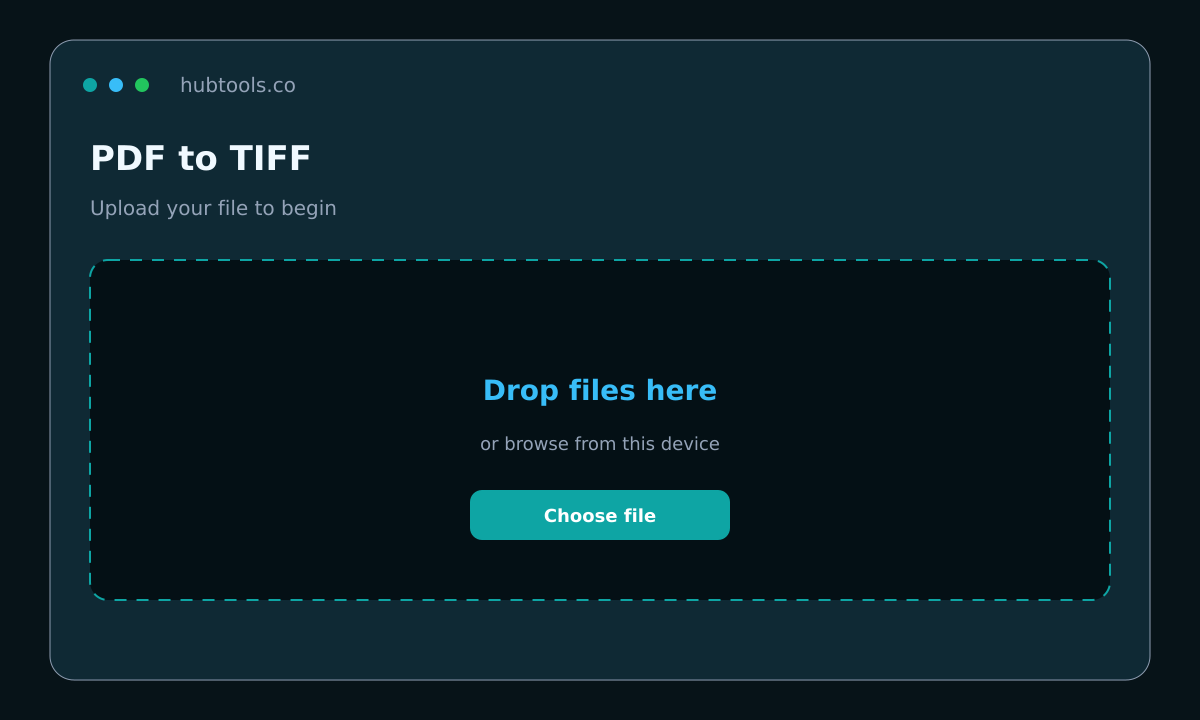
Here is the step-by-step. It takes less than a minute.
- Go to https://hubtools.co/tool/pdf-to-tiff.
- Click Upload and select your PDF file. The page loads in your browser. No file leaves your computer until you choose to download.
- Wait a few seconds while the tool renders each page as a TIFF image. You do not need to click anything else.
- Click Download. You get a single .tif file. If your PDF has multiple pages, the TIFF is multi-page. One file. Done.
That is it. No account. No email. No software. Just your PDF turned into a TIFF.
Pro tip: Rename your file before you download
The download filename might be generic. Change it to something like "contract-2024-04.tif" before you save. It saves you from hunting through Downloads folder later.
When a desktop app still makes sense
There are cases where desktop software is the right call. If you convert PDFs to TIFF every day, all day, a dedicated app might be faster. If you need batch processing for hundreds of files, local software can handle that. If you work with sensitive documents and your company policy forbids any online tool, you need offline software.
But for most people, most of the time, an online converter is faster and easier. No installs. No updates. No compatibility issues. You just open a browser and go.
Quality checklist before you share
Before you send that TIFF to a printer or a colleague, take 10 seconds to check these things.
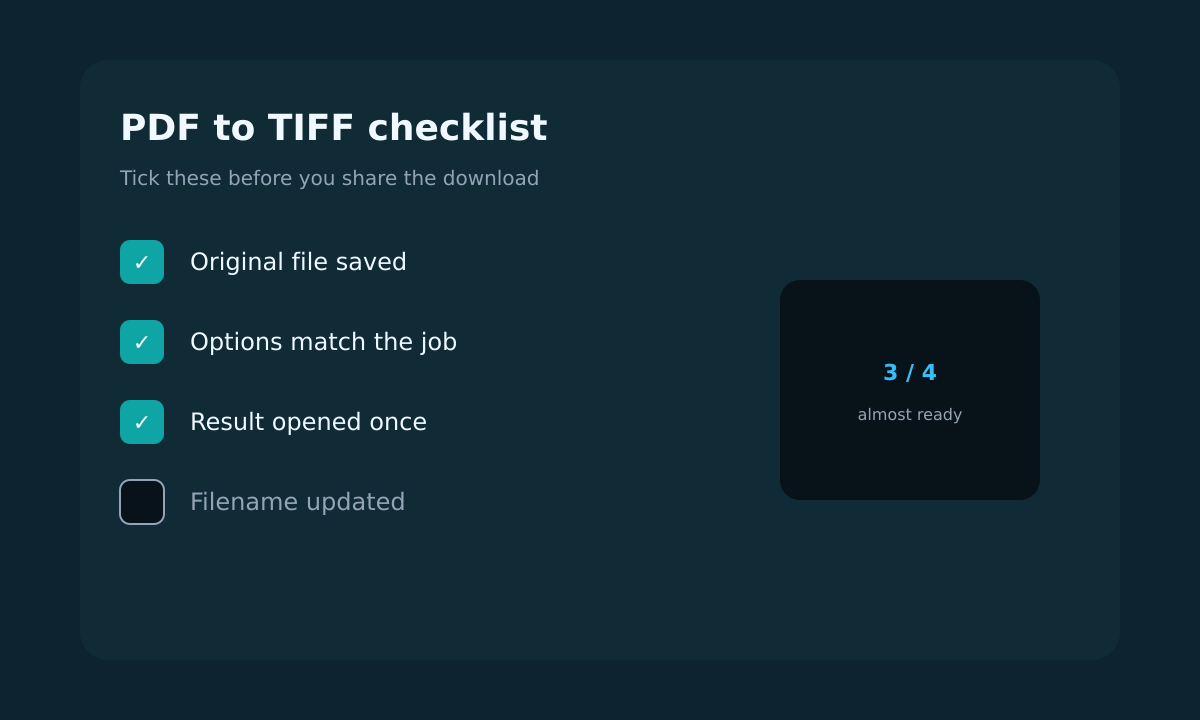
- Check the filename. Make sure it is something clear like "report-q2.tif" not "document(1)(final)(2).tif".
- Spot-check a page. Open the TIFF and zoom in on text. Make sure it is sharp and readable. If it looks fuzzy, try converting again with a different setting (HubTools uses high-quality rendering by default).
- Keep the original PDF. Do not delete your PDF after converting. TIFF images are larger files. You might need the original PDF later for editing or smaller file size.
Devices that work
You can convert PDF to TIFF on any device with a modern browser. Windows, Mac, Linux, Chromebook, iPhone, iPad, Android. It all works the same way. Upload, convert, download. No special permissions needed. No app store required.
On a phone, the interface is smaller but still usable. Tap Upload, select a PDF from your files, wait a moment, then tap Download. The TIFF saves to your device. You can then share it from there.
Comparison: Online vs desktop
| Feature | Online converter (HubTools) | Desktop software |
|---|---|---|
| Installation | None | Download and install |
| File size limit | Handles most standard PDFs | Depends on software |
| Multi-page TIFF | Yes | Often yes |
| Batch conversion | One file at a time | Usually supported |
| Cost | Free | Free to expensive |
| Works on any device | Yes | Only installed OS |
If something breaks
Most conversions go smoothly. But sometimes you hit a snag. Here are common issues and fixes.
- PDF does not upload. Check the file size. If it is huge, try splitting the PDF into smaller parts first. You can use the Split PDF tool at https://hubtools.co.
- TIFF looks blank. Some PDFs are made of scanned images with hidden text layers. The tool renders the visible page, so it should work. Try converting again. If it still fails, the PDF might be corrupted.
- Download does not start. Check your browser permissions. Some browsers block downloads from new sites. Allow downloads for hubtools.co and try again.
- Multi-page TIFF opens as single page. Some image viewers do not support multi-page TIFF. Use a proper viewer like IrfanView (Windows) or Preview (Mac) to see all pages.
What to remember
Converting PDF to TIFF does not have to be a project. You do not need to install software, sign up for a service, or hunt for a tool that works. Use a browser. Upload your PDF. Download your TIFF. Done.
Keep the original PDF. Check the output once. Name the file something sensible. That is all.
For more free tools, visit https://hubtools.co.
Try it on HubTools
HubTools is free in your browser at hubtools.co. Open PDF to TIFF for this job, or browse more PDF and file tools on the same site with no install.
Start here: https://hubtools.co/tool/pdf-to-tiff · All HubTools
Recommended HubTools
More free tools live at hubtools.co. Start with these:
Check your internet speed
When file tools feel slow, test the connection first. Run a free speed check on SpeedTesters (speedtesters.co) , then come back to this guide on PDF to TIFF Without the Hassle: A Practical Guide.
Comments