
The fastest way to convert a PDF to Word is to use a free online converter or open the file directly in Microsoft Word. Both approaches are free, require no special software, and work in minutes. For scanned PDFs, you need a tool with OCR (optical character recognition) support, which reads image-based text and turns it into editable content.
Here are your best options at a glance:
- Hubtools PDF to Word Converter — free, no signup, no watermarks, OCR supported
- Microsoft Word — built-in conversion, works offline, no uploads required
- Adobe Acrobat Online — trusted brand, fast processing, preserves fonts
- ILovePDF — simple interface, free tier available, handles scanned files
- Smallpdf — clean design, fast conversion, free for basic use
Formatting preservation varies by document complexity. Simple, text-heavy PDFs convert cleanly. PDFs with heavy graphics, columns, or custom fonts may need minor touch-ups after conversion.
How to convert a PDF to Word step by step

The process is nearly identical across most online tools and takes under two minutes for a standard file.
Using an online converter (like Hubtools):
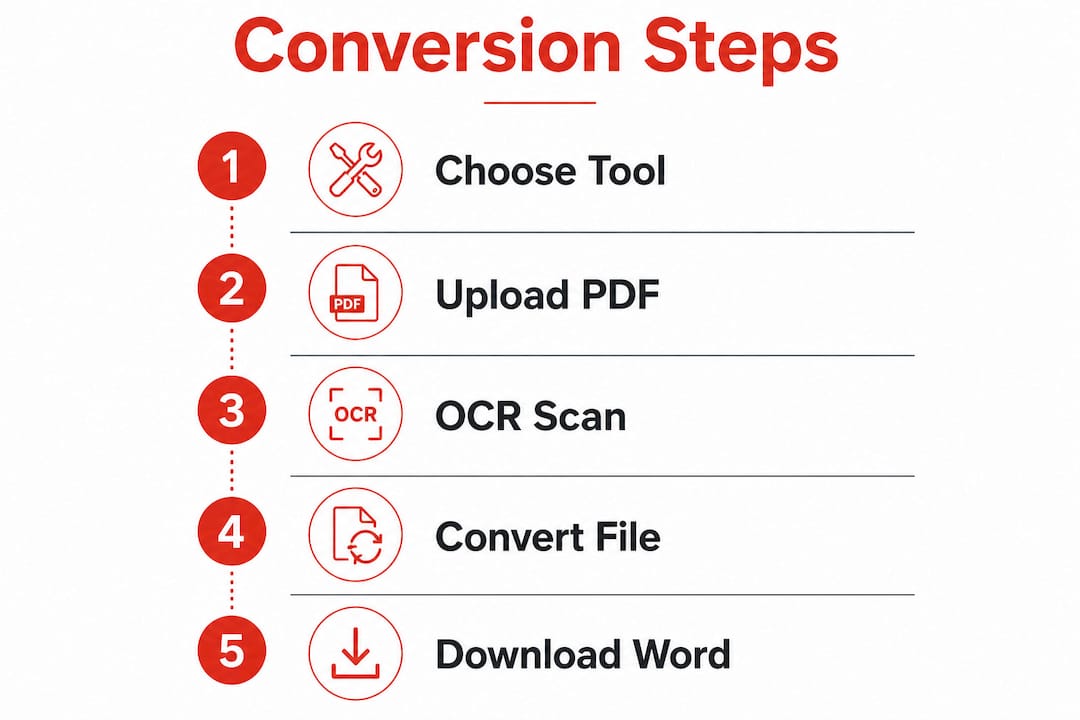
- Go to the Hubtools PDF to Word converter page.
- Click Upload and select your PDF file from your device or cloud storage.
- Wait for the tool to process the file. Most conversions finish in seconds.
- Click Download to save the converted .docx file to your device.
- Open the file in Microsoft Word or Google Docs and start editing.
Using Microsoft Word directly:
- Open Microsoft Word on your computer.
- Click File, then Open, and select your PDF.
- Word will display a prompt explaining it will convert the file. Click OK.
- The PDF opens as an editable Word document. Review the layout before editing.
- Save the file as a .docx using File > Save As.
Pro Tip: If you're converting a scanned PDF, choose a tool that explicitly lists OCR support. Without it, the output will be an image inside a Word file, not editable text.
How OCR makes scanned PDF conversion actually work
OCR is the technology that makes converting scanned PDFs possible. A scanned PDF is essentially a photograph of a page. Without OCR, a converter has no way to read the text. It would just embed the image into a Word file, leaving you with nothing you can edit.
OCR works by analyzing the shapes of characters in an image and matching them to known letter and number patterns. The result is a text layer that Word can display and edit. Modern OCR tools handle printed text well, including multiple fonts and sizes.
Key insight: OCR accuracy depends heavily on scan quality. A clean, high-resolution scan at 300 DPI or above produces far better results than a blurry phone photo. If your output has garbled words, the scan itself is usually the problem, not the converter.
What to expect from OCR conversion:
- Printed text: High accuracy on clean scans, minimal corrections needed
- Tables and columns: Usually recognized, but may need formatting adjustments
- Handwriting: Most free tools do not reliably convert handwritten text
- Complex layouts: Multi-column documents may reflow differently in Word
- Image captions: Sometimes missed or placed out of order
OCR accuracy has improved significantly in recent years, but very complex layouts or low-quality scans may still require manual cleanup after conversion.
Which free online PDF to Word converters are worth using?
Several well-known tools handle PDF to Word conversion reliably, each with slightly different strengths.
- Hubtools offers over 65 free PDF tools, including a dedicated PDF to Word converter with no watermarks, no signup required, and OCR support for scanned files. You upload, convert, and download entirely in your browser.
- Adobe Acrobat Online carries the weight of Adobe's long history with the PDF format. The free tier handles basic conversions and does a solid job preserving fonts and layout.
- ILovePDF is a straightforward option with a clean interface. It supports scanned PDFs and processes files quickly, though the free tier has daily limits.
- Smallpdf works well for occasional use. It's fast and handles most standard PDFs without fuss, with a free plan that covers basic conversions.
For privacy, avoid uploading sensitive documents like tax forms, contracts, or medical records to any online converter. Most reputable tools process and delete files automatically, but the safest approach for confidential files is to use Microsoft Word offline or a tool with a clear privacy and file protection policy.
What Microsoft Word's built-in PDF converter actually does

Microsoft Word converts PDFs natively by opening them directly in the program, no extra apps or uploads needed. This is one of the most overlooked features in Word. You already have it if you have Microsoft 365 or any recent version of Word installed.
The conversion works by reading the PDF's underlying structure and rebuilding it as a Word document. For text-heavy files, the output is usually clean and ready to edit. Microsoft notes that complex formatting may shift during conversion because PDFs are designed for sharing and viewing, not editing. Columns, tables, and embedded graphics are the most common sources of layout changes.
Key benefits of using Word's built-in feature:
- No internet connection required — works fully offline
- No file uploads — your document never leaves your device
- No third-party software — uses tools you already have
- Supports Word for the web — upload and convert through a browser if needed
For simple, text-based PDFs, Word's built-in conversion handles the job without any additional tools. For scanned PDFs, Word does include basic OCR, though dedicated online tools with stronger OCR engines may produce cleaner results on difficult files.
Key Takeaways
Free tools and Microsoft Word together cover every PDF to Word conversion scenario, from simple text files to scanned documents requiring OCR.
| Point | Details |
|---|---|
| Best free online option | Hubtools converts PDFs to Word free, with no signup, no watermarks, and OCR support. |
| Microsoft Word works offline | Open any PDF in Word via File > Open for instant conversion with no uploads. |
| OCR is required for scanned PDFs | Without OCR, a scanned PDF converts as an image, not as editable text. |
| Formatting may shift | Complex layouts with columns or graphics often need minor adjustments after conversion. |
| Privacy matters | Avoid uploading sensitive documents to online tools; use Word offline for confidential files. |