You snap a few important photos on your iPhone. Maybe it's a signed contract, a receipt for reimbursement, or shots from a family event. You try to email them to a colleague or upload them to a portal. Then the error pops up: "File format not supported." HEIC files are Apple's efficient image format, but they often don't play well with older systems, Windows machines, or business platforms.
The usual fix involves hunting for an app, waiting through a slow install, or trying a sketchy converter that asks for your email. It's a waste of time. The real fix is simpler: convert HEIC to PDF online free using a browser tool. No installs. No signups. No mess.
What usually goes wrong
- Installing bloatware. You search "HEIC converter" and download a program that bundles adware, toolbars, or a trial version. After installation, it still doesn't work properly or limits you to three files.
- Using the wrong app. Some tools convert HEIC to JPEG but lose metadata or compress the image. Others create separate PDFs for each photo, not one combined document. You end up with a folder of loose files instead of a clean PDF.
- Email size limits. iPhone HEIC files are smaller than JPEGs, but once you convert them to PDF without compression, the file might still be large. Some email servers reject attachments over 25 MB. You need a tool that handles batches efficiently without bloating the output.
The HubTools path
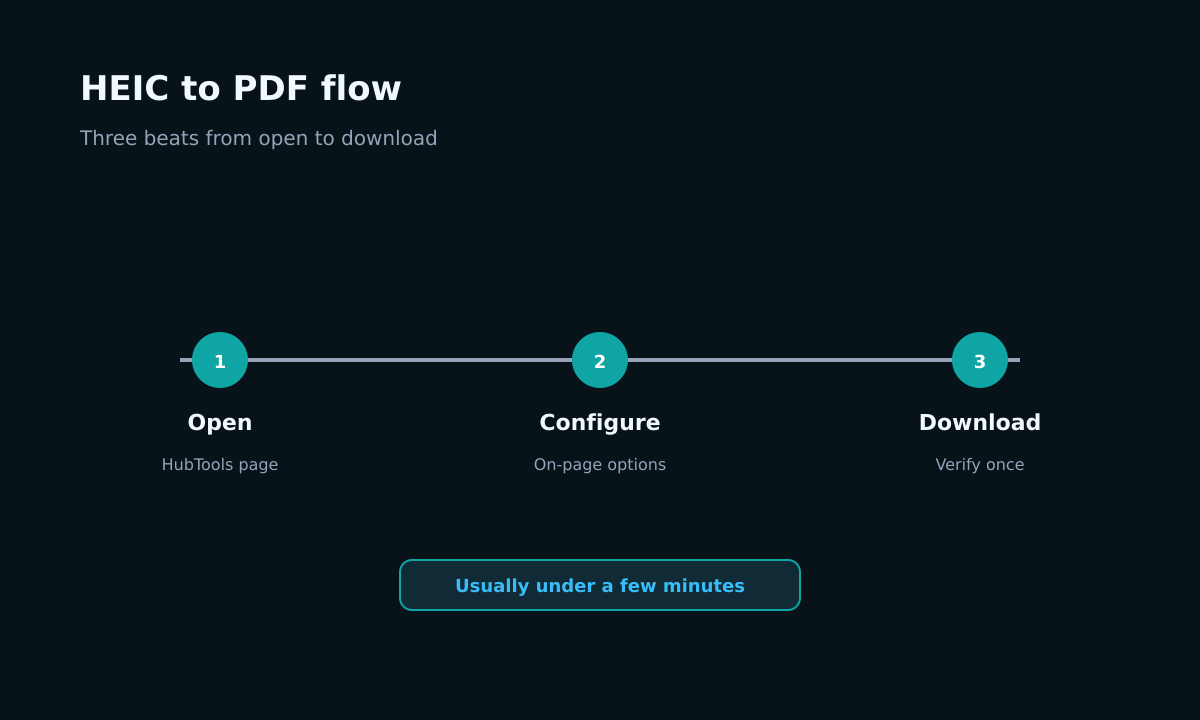
HubTools offers a HEIC to PDF converter that runs entirely in your browser. Here is the full walkthrough.
- Open hubtools.co/tool/heic-to-pdf on any device.
- Click the upload area or drag your HEIC or HEIF photos from your iPhone directly into the window. You can select multiple files at once.
- The tool processes each photo and arranges them into a single PDF document. The order follows your selection or file name sequence.
- Click "Download" to save the PDF to your device. That's it.
No account creation. No waiting for an email. No file size limits that force you to split your batch. The entire process takes under a minute for a handful of photos.
Pro tip
Before uploading, rename your HEIC files with a clear prefix like "Receipt_2025-01-15_01.heic." The PDF pages will carry that order. If you need individual PDFs per photo, just upload one file at a time. The tool gives you a fresh PDF for each session.
When a desktop app still makes sense
Most people will never need a desktop app for this task. HubTools handles the job quickly online. But there are two edge cases where a local program might be worth considering.
First, if you work offline regularly on a plane or in remote areas, a desktop converter lets you convert without internet. Second, if you need to convert thousands of photos in one batch, a dedicated app may offer folder monitoring and automated processing. For everyday use, however, an online tool is faster, simpler, and always up to date.
Quality checklist before you share
Before you send that PDF, run through this quick checklist.
- Check filenames. Rename the downloaded PDF to something meaningful, like "Invoice_Jan2025.pdf" instead of "converted_12345.pdf." It helps the recipient find it later.
- Spot check a page. Open the PDF and scroll through a few pages. Make sure all photos rendered and the order is correct. Sometimes a photo might be rotated if the original had orientation metadata.
- Keep the original HEIC files. Don't delete your iPhone originals after conversion. PDF is great for sharing, but HEIC retains higher editing flexibility and smaller storage. Archive the originals in a folder or cloud backup.
Devices that work
Windows
Windows 10 and 11 users can open HubTools in Chrome, Edge, or Firefox. No need to install the HEIC image extension from the Microsoft Store. The browser handles the conversion using WebAssembly and canvas APIs.
Mac
macOS users often have Preview which can open HEIC but not always export as PDF cleanly. HubTools works in Safari or Chrome and produces a reliable PDF without fiddling with export settings.
Mobile
On iPhone or Android, just use your mobile browser. Upload photos from your camera roll. The download saves directly to your phone's file manager. No app store visit required.
Comparing HEIC to PDF options
| Feature | HubTools online | Desktop app |
|---|---|---|
| Installation | None | Requires download and setup |
| Cost | Free | Often paid or trial limited |
| Batch size | Unlimited typical use | Varies |
| Works offline | No | Yes |
| Privacy | Files processed in browser, not stored | Files stay on your computer |
If something breaks
Sometimes a file won't upload or the PDF looks blank. Here are common fixes.
- File not uploading. Make sure your files end in .heic or .heif. Rarely, a renamed file with wrong extension will be rejected. Check the original file properties on your iPhone.
- PDF is empty or missing pages. Try uploading one photo at a time. If one file is corrupt, the tool may skip it. Re-sync that photo from your iPhone to your computer and try again.
- Browser is slow or hangs. Clear your browser cache or try a different browser. HubTools works best on the latest version of Chrome, Firefox, or Safari.
- Download doesn't start. Disable popup blockers for the site. Some browsers require you to allow downloads from the page. Check your download folder.
What to remember
Converting HEIC to PDF doesn't need to be a project. Use a browser tool that works instantly, respects your privacy, and requires zero setup. Keep your originals, name your files clearly, and spot check the output. You will save time and avoid the headache of incompatible formats.
Recommended HubTools
- HEIC to PDF - Convert iPhone HEIC photos to PDF online free.
- PDF to Word - Turn PDF documents into editable Word files.
- PDF to PowerPoint - Convert PDFs into presentation slides.
- PDF to Excel - Extract tables from PDFs into spreadsheets.
- Word to PDF - Transform Word documents into PDF format.


Comments