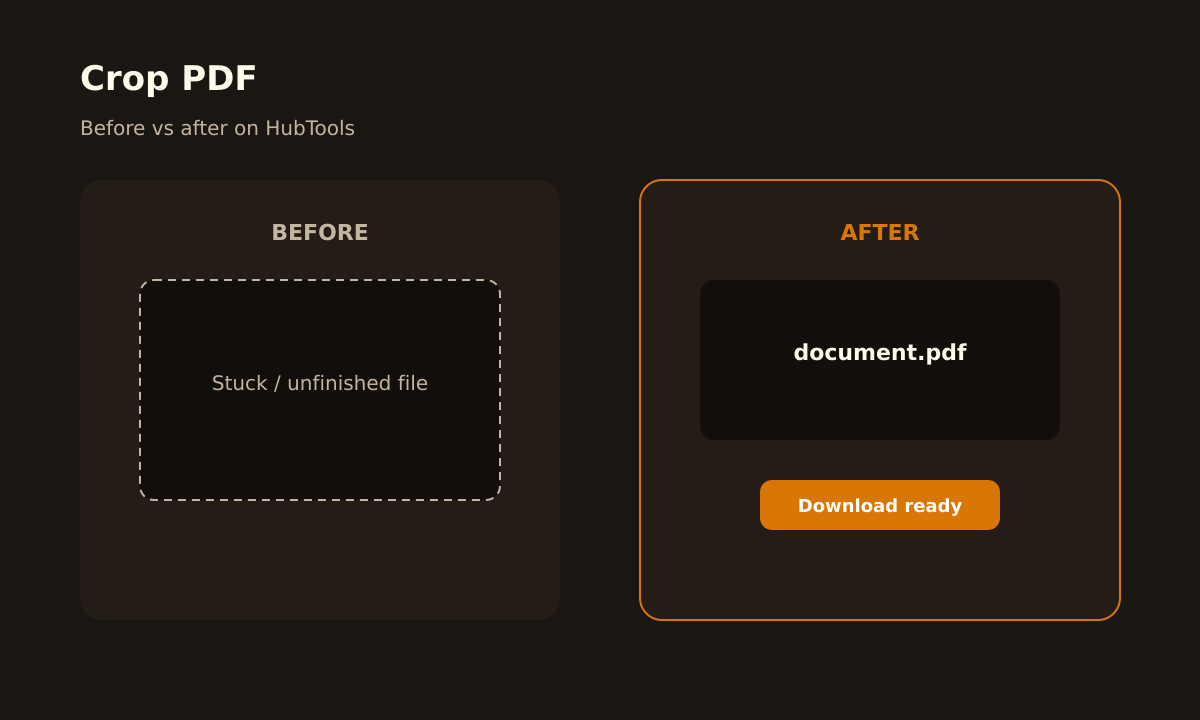
You have a PDF with extra white space on the sides. Or maybe the page includes a header and footer you don’t need. You open your desktop editor, search for the crop tool, and nothing works the way you expect. That’s the “before” state. Frustrating, slow, and a waste of your afternoon.
Now imagine dragging a box around the part you want and downloading the result. That’s the “after” state. No tutorial marathon, no hidden menus. Just a clean file that looks the way you intended. That’s exactly what the HubTools Crop PDF tool gives you.
Before you open the tool
Take a quick look at your PDF. What do you actually need to keep? Sometimes you only need the main body of a document, not the margins. Other times you want to remove a sidebar or a footer that repeats on every page.
Here’s a real situation: you have a monthly report with a wide left margin and a small logo in the corner. When you print or share it, that extra space makes the text look tiny. You want the content to fill the page. That’s a perfect task for a crop.
Before you upload, know what you want to cut. It helps to have a clear idea of the final shape. Do you want to keep everything from the top left to the bottom right? Or just the middle section? You can adjust later, but a starting point saves time.
The HubTools walkthrough
Go to https://hubtools.co/tool/crop-pdf. The page loads fast and you don’t have to sign up. Here’s how to crop your PDF:
- Upload your PDF. Click the upload area and choose your file. You can also drag and drop it into the window.
- Preview each page. The tool shows you the first page. You’ll see the full page on your screen. If your PDF has several pages, you can move through them.
- Drag to select the crop area. Click and drag on the page to draw a rectangle around the part you want to keep. The area outside the rectangle gets cut. You can adjust the rectangle as many times as you need.
- Check other pages. If you need a different crop on another page, select that page and drag a new rectangle. The tool remembers each page’s crop area.
- Download the cropped PDF. When you’re happy, hit the download button. Your file is ready in seconds.
That’s the whole process. No extra steps, no confusing settings.
What a clean result looks like
After you crop, open the downloaded file and check a few things:
- Is the text still sharp and readable?
- Does the page size look right for your needs?
- Are all the elements you wanted to keep inside the crop area?
- Is there no stray margin or leftover line from the original?
If something looks off, go back to the tool and adjust the rectangle. It’s easier to fix now than later.
Pro tip: crop before you print
If you’re planning to print a PDF, cropping the margins can save paper and make the text larger. Instead of adjusting the print settings, crop the file first. Then print it as-is. That way you control exactly what appears on the page.
Desktop vs browser
Desktop PDF editors exist, and they work fine. But they often cost money, take up space, and require a learning curve. For a quick crop, a browser tool is faster. You don’t install anything, you don’t worry about updates, and you can use it on any computer.
Here’s a quick comparison:
| Desktop editor | HubTools in browser |
|---|---|
| Needs installation | Works online |
| Often paid or subscription | Free to use |
| Steeper learning curve | Simple drag and select |
| Updates and compatibility issues | No maintenance |
For a one-off crop, the browser wins. For heavy-duty editing every day, a desktop tool might be worth it. But for most people, the browser tool is enough.
Common snags and fixes
Sometimes things don’t go perfectly. Here are common issues and how to fix them:
- My PDF won’t upload. Check the file size. If it’s huge, compress it first. Also make sure the file isn’t corrupted.
- The crop area doesn’t match my expectations. You can drag the rectangle again. Take your time to position it exactly.
- I want the same crop on all pages. The tool lets you set a crop per page. If you want the same on every page, set it once and then apply it to the rest. If that option isn’t visible, set each page manually. It’s still fast.
- The downloaded file looks blurry. That’s rare because the tool doesn’t recompress heavily. If it happens, check the original file quality. A blurry original will stay blurry.
Keep this in mind
Cropping a PDF is about control. You decide what stays and what goes. With the HubTools Crop PDF tool, you get that control without the headache. You can work on one page or all pages, and you see the result before you download.
Remember that you can always undo a crop. If you make a mistake, just re-upload the original and try again. There’s no risk of ruining your source file.
Also, this tool is part of a bigger set of free PDF utilities. If you need to edit text, add a watermark, rotate pages, or add page numbers, you can do it all in one place. No need to jump between different websites.
Try it now: crop your PDF and see how simple it is.
Try it on HubTools
HubTools is free in your browser at hubtools.co. Open Crop PDF for this job, or browse more PDF and file tools on the same site with no install.
Start here: https://hubtools.co/tool/crop-pdf · All HubTools
Recommended HubTools
More free tools live at hubtools.co. Start with these:
Check your internet speed
When file tools feel slow, test the connection first. Run a free speed check on SpeedTesters (speedtesters.co) , then come back to this guide on From Stuck File to Done: How to Crop PDF.
Comments