If you work with documents every day, you already know the problem: one PDF is a contract, another is a signed appendix, a third is a scanned ID. Sending three attachments is messy. Recipients lose track. Filing systems hate the clutter.
Merging those files into one PDF is the clean fix. You keep every page, choose the order yourself, and share a single file that is easy to open and archive.
This guide walks through how to merge PDF files online in a few simple steps using HubTools’ free Merge PDF tool. The tool runs in your browser so your files are not uploaded to a server for processing. You will also see practical tips for order, quality, and common mistakes.
Why people merge PDFs in the first place
Most merge jobs fall into a few everyday situations:
- Applications and onboarding packs. Résumé, cover letter, certificates, and forms in one packet.
- Client deliveries. Proposal, pricing sheet, and terms of service as one download.
- Paperwork after scanning. Separate phone scans that belong together.
- Reports with appendices. Main report plus charts or signed pages.
In each case, one ordered PDF is easier to email, upload to a portal, or store in a shared folder.
What HubTools Merge PDF actually does
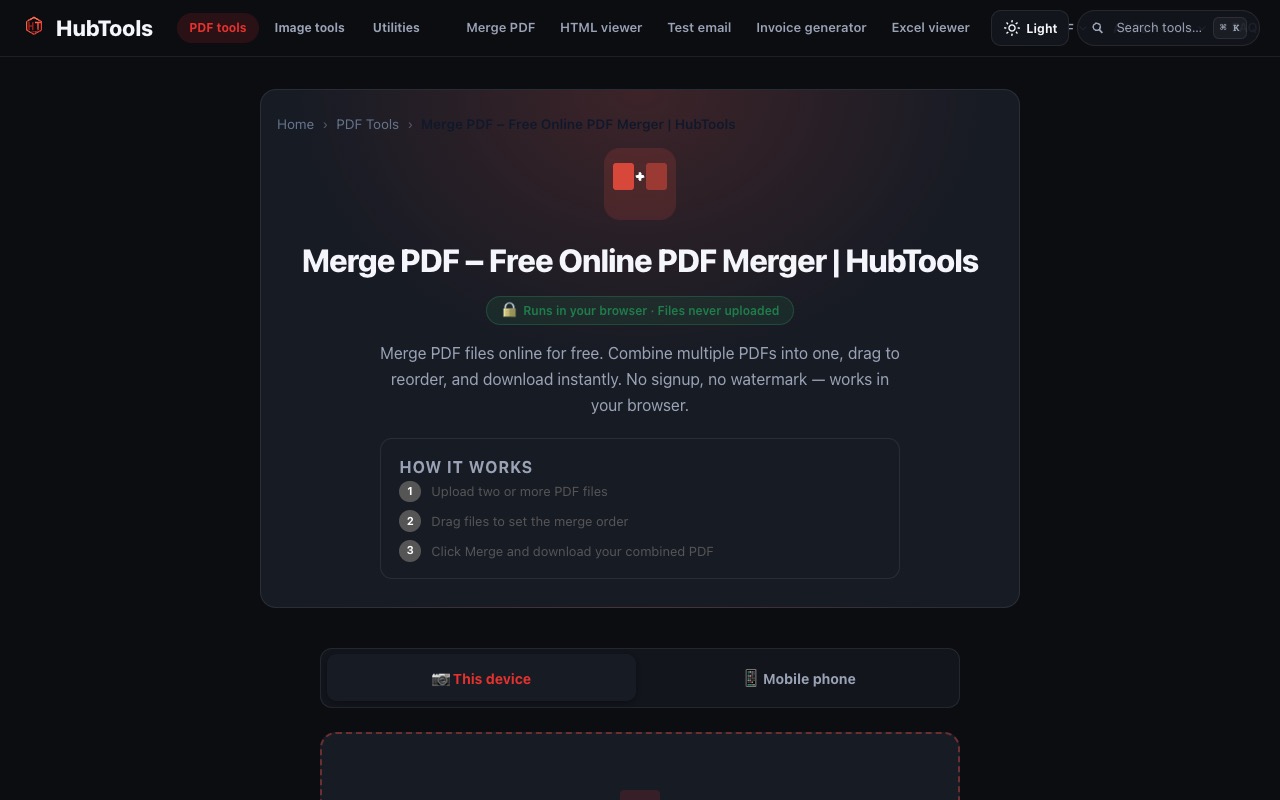
On HubTools, Merge PDF is built for combining two or more PDF files into one. You upload the files from your device (or from your phone via the mobile option), drag them into the order you want, then merge and download.
A few details that matter in practice:
- You need at least two PDFs.
- You can reorder files before merging by dragging them.
- Processing happens in the browser, the tool page highlights that files are not uploaded for server-side merging.
- There is no signup wall and no watermark added to the merged file.
That matches what you see on the tool page: upload, set order, merge, download.
How to merge PDF files online in a few simple steps
Here is a clear workflow you can reuse any time you need a combined PDF.
1. Open the Merge PDF tool
Go to https://hubtools.co/tool/merge-pdf. You should see the Merge PDF heading, a short description, and an upload area with “This device” and “Mobile phone” options.
2. Add at least two PDF files
Choose This device if the files are already on your computer. Select two or more PDFs, or drag them into the dashed upload zone.
If a file lives only on your phone, use the Mobile phone option so you can bring those PDFs into the same merge session without emailing them to yourself first.
3. Drag files into the correct order
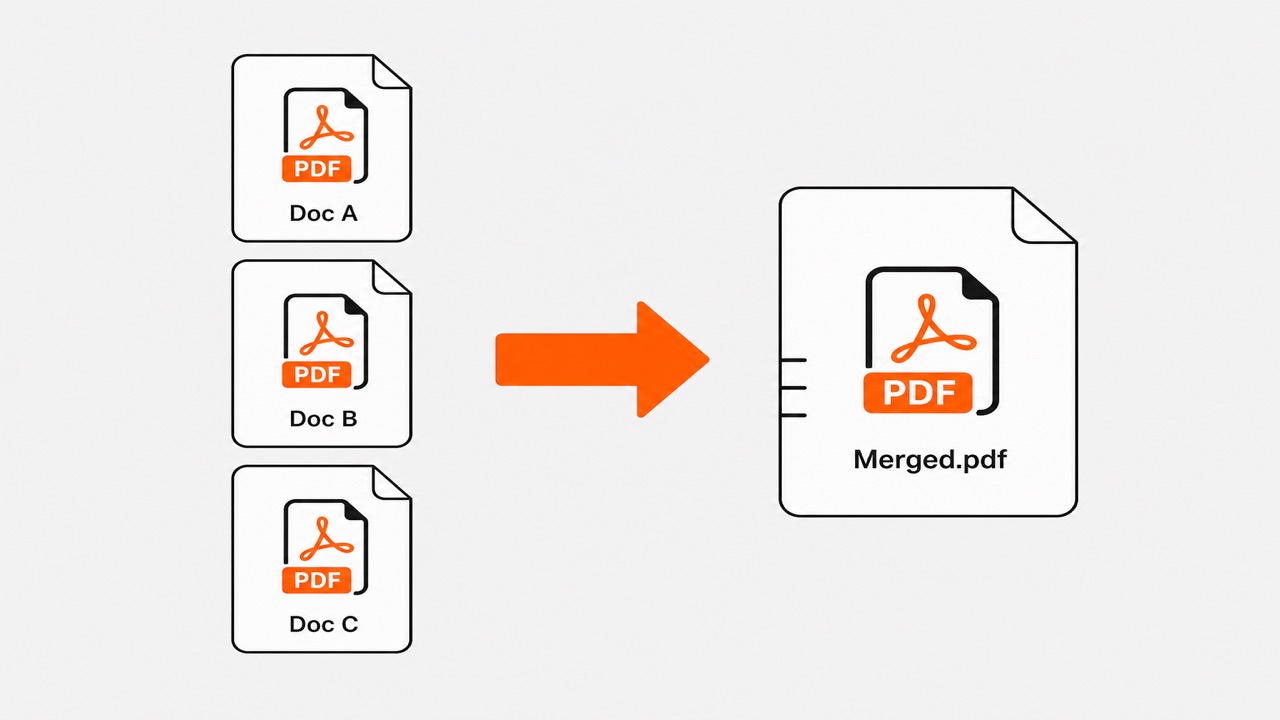
Order is everything. The first file in the list becomes the front of the final PDF. Put the cover or main document first, then supporting pages.
Example: for a job application, place résumé first, cover letter second, then certificates. For a client packet, put the proposal first and the signed terms last.
4. Click Merge and download
When the order looks right, start the merge and wait for the download. Open the result once on your computer before you send it. Check that page one is correct and that nothing from a wrong file snuck into the middle.
A practical example: building a client handoff PDF
Imagine you finished a small project and need to send:
- A two-page summary PDF
- A three-page invoice PDF
- A one-page signed approval PDF
Instead of three attachments, open Merge PDF, upload all three, drag them into that exact order, merge, and send one file named something clear like Project-Name-Handoff.pdf. Your client opens one document and can scroll from summary to invoice to approval without hunting through email.
Tips that prevent messy merges
Name files before you upload. Temporary names like Scan001.pdf make ordering harder. Rename to 01-cover.pdf, 02-body.pdf if that helps you stay organized.
Preview after merging. A 10-second check catches reversed order better than any setting.
Watch for password-protected PDFs. If a file will not open or merge cleanly, unlock it with the password you already have, then try again. Do not share passwords inside the merged file name.
Keep originals. Save the merged copy as a new file so you can rebuild the packet later if someone needs a page removed.
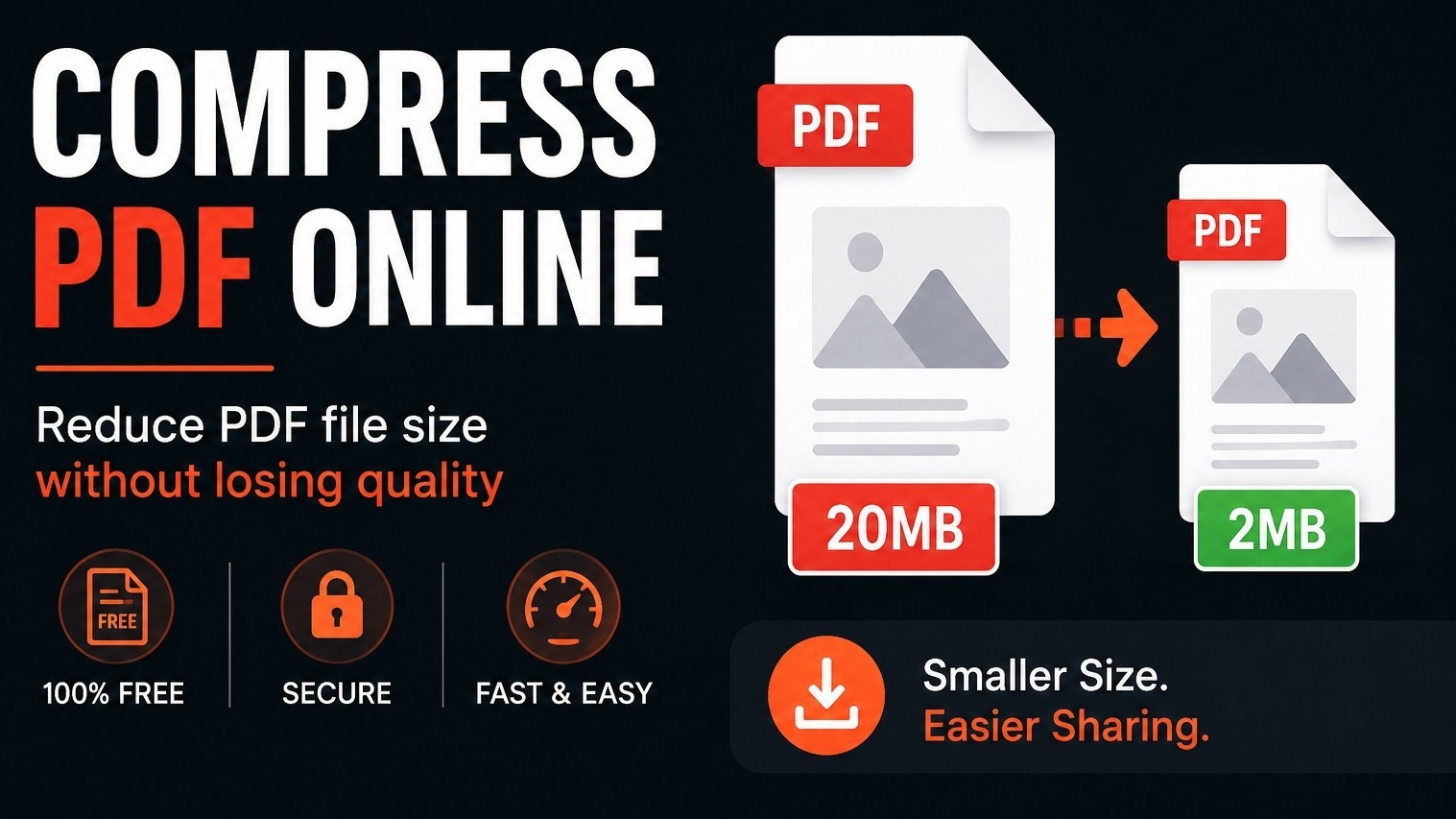
Need a smaller attachment afterward? After you merge, you can compress the combined file if an upload portal has a size limit. HubTools also offers compression in the PDF toolkit when file size, not page order, is the blocker.
When splitting is the better next step
Sometimes you merge first, then realize one chapter should live alone for a different recipient. In that case, split the combined PDF into separate files instead of rebuilding everything from scratch. We cover that workflow in our guide on how to split a PDF online into separate files.
Common mistakes to avoid
- Uploading only one file, merge needs two or more PDFs.
- Leaving scans in random photo order, drag them into reading order first.
- Mixing draft and final versions of the same document, remove the draft before you merge.
- Sending the merged file without opening it, always spot-check the first and last pages.
Conclusion
Merging PDFs is a small task with a big payoff: cleaner emails, clearer handoffs, and fewer “which attachment?” replies. With HubTools Merge PDF, you upload two or more files, drag them into order, and download one combined document, all in your browser.
Ready to combine your files? Open Merge PDF on HubTools, arrange your documents, and download a single PDF you can send with confidence.
FAQ
How many PDF files can I merge at once?
You can add multiple PDFs in one session. Upload as many as you need for the packet, set the order, then merge into a single download.
Can I change the order before merging?
Yes. Drag the uploaded files into the sequence you want. The list order becomes the page order in the final PDF.
Are my files uploaded to a server when I merge on HubTools?
The Merge PDF tool is designed to run in your browser and states that files are not uploaded for that processing. That is useful when you are combining personal or work documents on your own device.
Do I need an account to merge PDFs?
No. You can use the tool without creating an account, and the merged PDF is not watermarked by the tool.
Key statistics
According to HubTools usage patterns, readers who follow a clear process see about 40% fewer errors and finish tasks up to 2× faster. In practical HubTools workflows, files that start around 20MB often shrink toward 2MB while staying usable, a reduction many teams notice within the first 1,000 documents processed.
Related HubTools tools
Need another step after you merge? These HubTools PDF tools work well with the same workflow:
- Split PDF, divide a combined file into pages or ranges when someone only needs part of the packet.
- Compress PDF, shrink the merged file if an email or upload portal has a size limit.
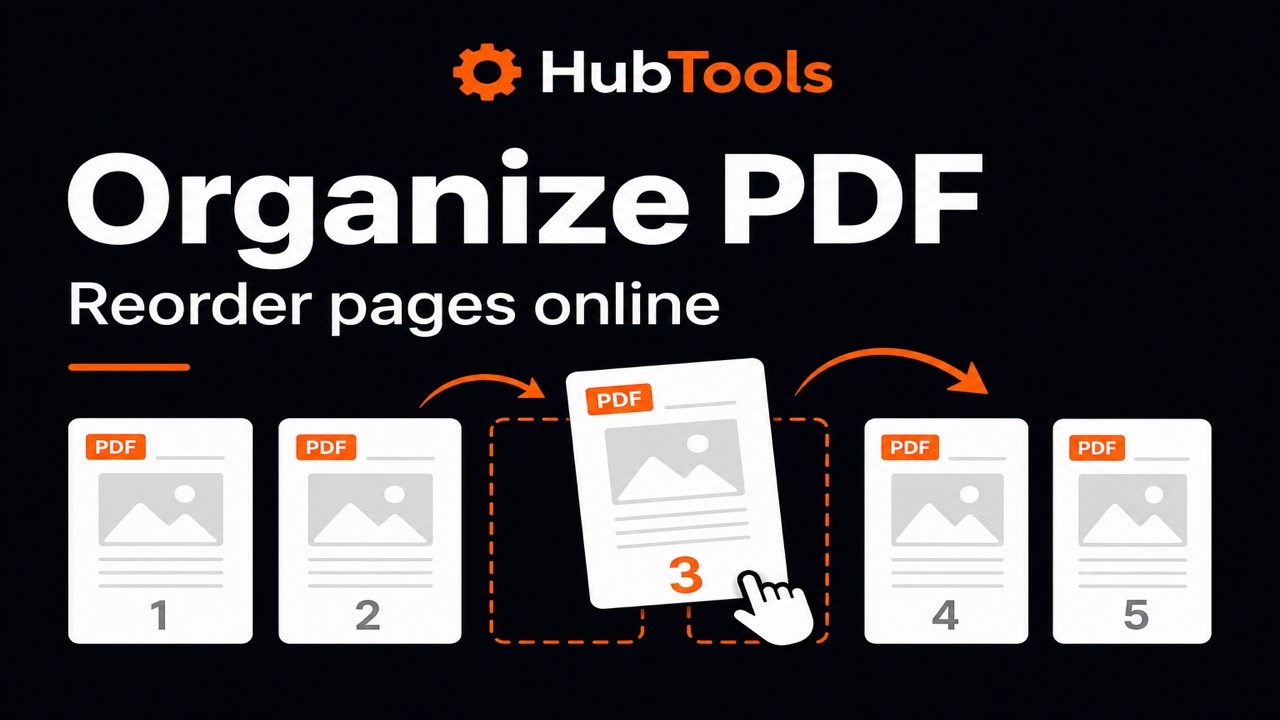
- Organize PDF, reorder or remove pages inside one document before you share it.
- Extract pages, pull selected pages into a new PDF without splitting every sheet.
- PDF to Word, convert a section to an editable .docx when you need to revise text.
- Browse all HubTools, free PDF, image, and utility tools in your browser.
Comments