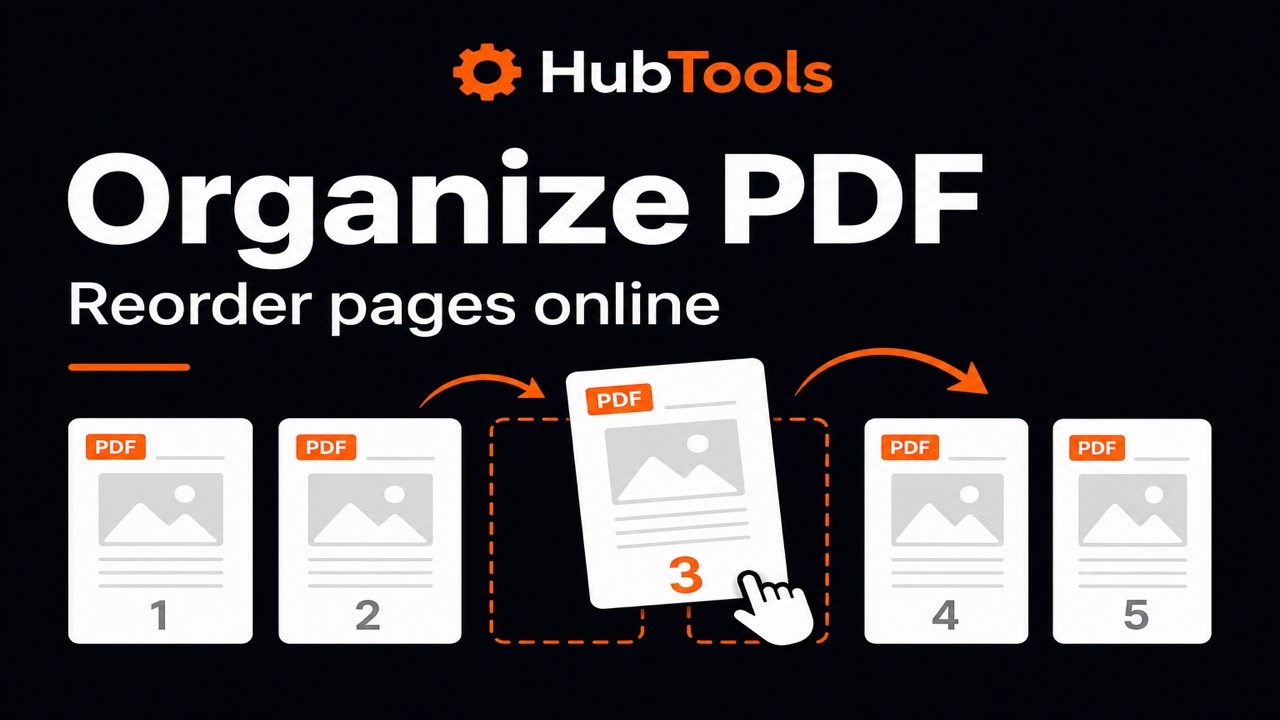
A PDF can be complete and still feel wrong. Page 1 is a blank scan. The signature page sits in the middle. The cover is somehow last. You did not write a bad document. The order just got scrambled during scanning, exporting, or combining files.
Organizing PDF pages fixes that. You put pages in the order a reader expects, remove sheets that do not belong, and download one cleaner file you can send with confidence.
This guide shows how to organize PDF pages online using HubTools’ free Organize PDF tool. The workflow runs in your browser. You will see when to reorder, when to delete pages, and how this fits with merge or extract jobs.
When you need to organize a PDF
These situations show up all the time:
- Phone scans. You photographed pages out of sequence and need a normal reading order.
- Mixed exports. A report, chart pack, and signature page landed in the wrong sequence.
- Extra blanks. Empty sheets or duplicates snuck into the file.
- Client packets. You want the cover first, details next, and terms at the end.
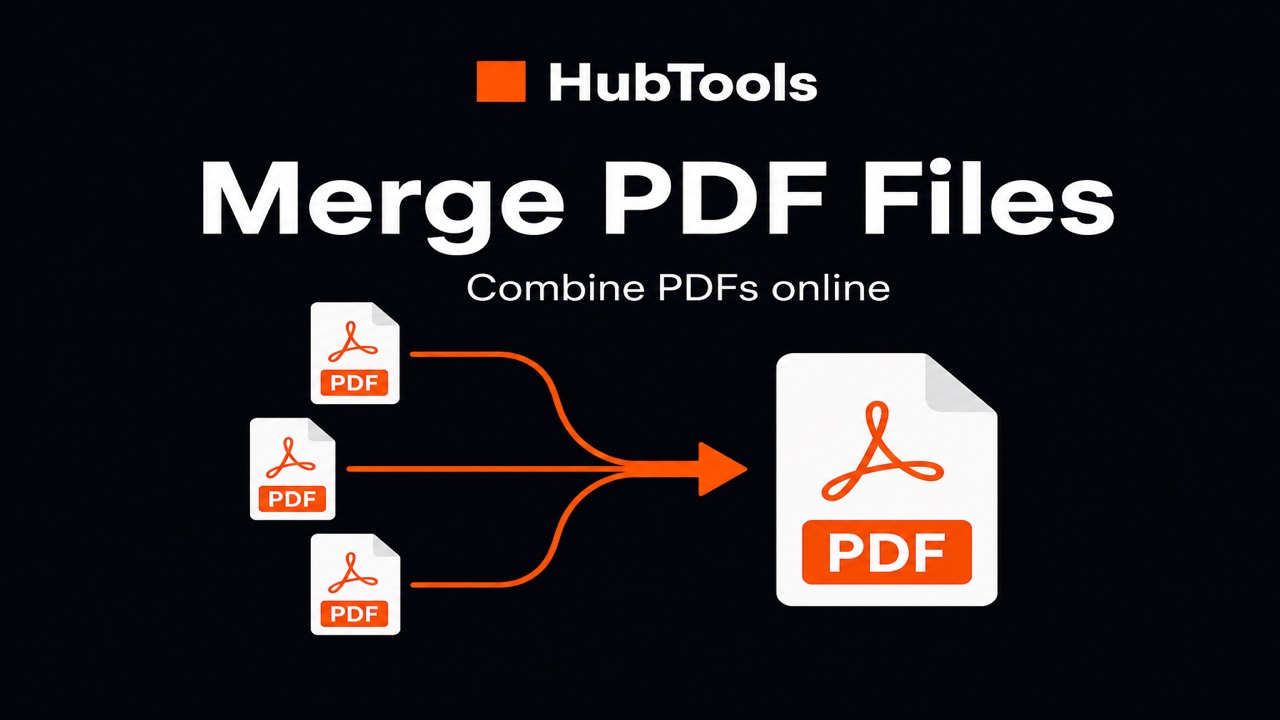
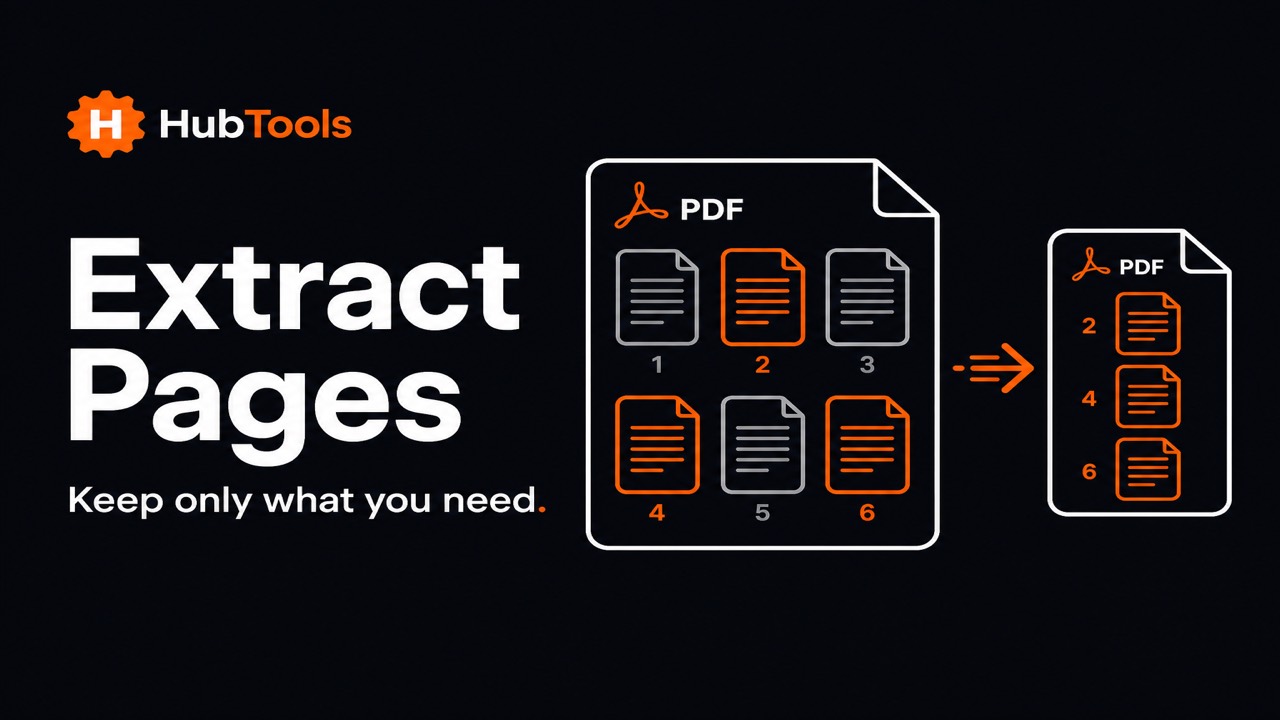
If you are still combining separate files, start with merging PDFs. If you only need a few pages from a long file, extracting pages may be faster than reorganizing everything.
What HubTools Organize PDF does
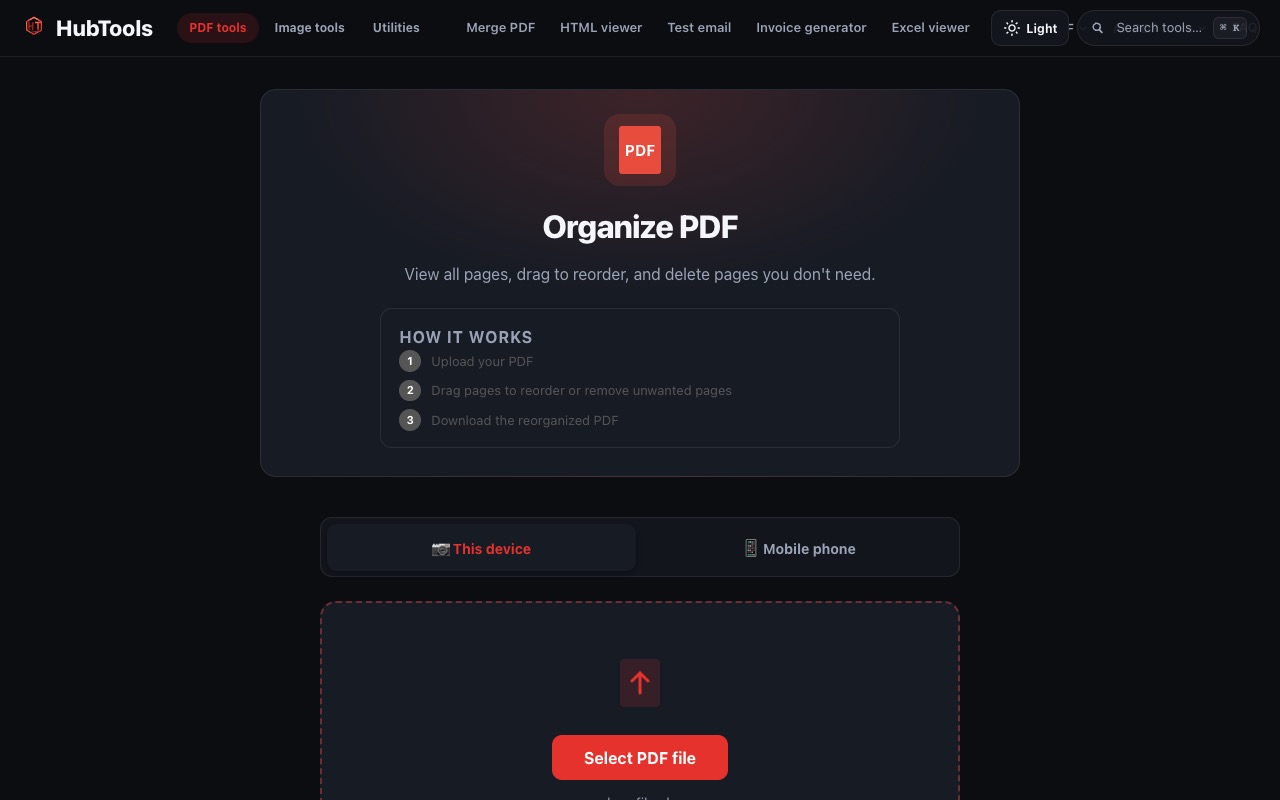
Organize PDF is built for one document at a time. After you upload a PDF, you can drag page thumbnails into a new order and remove pages you do not want. Then you download the updated file.
In practice that means:
- Upload one PDF from your device or phone.
- Drag pages to set the final sequence.
- Remove unwanted pages when needed.
- Download the reorganized PDF without creating an account or adding a watermark.
The tool page walks through the same idea: upload, rearrange, download.
How to organize PDF pages online step by step
1. Open Organize PDF
Go to https://hubtools.co/tool/organize-pdf. Confirm you are on Organize PDF before you upload, especially if other PDF tools are open nearby.
2. Upload the PDF
Choose This device for a file on your computer, or the phone option when the PDF is still on your mobile. Upload a single document. Organizing starts from one source file.
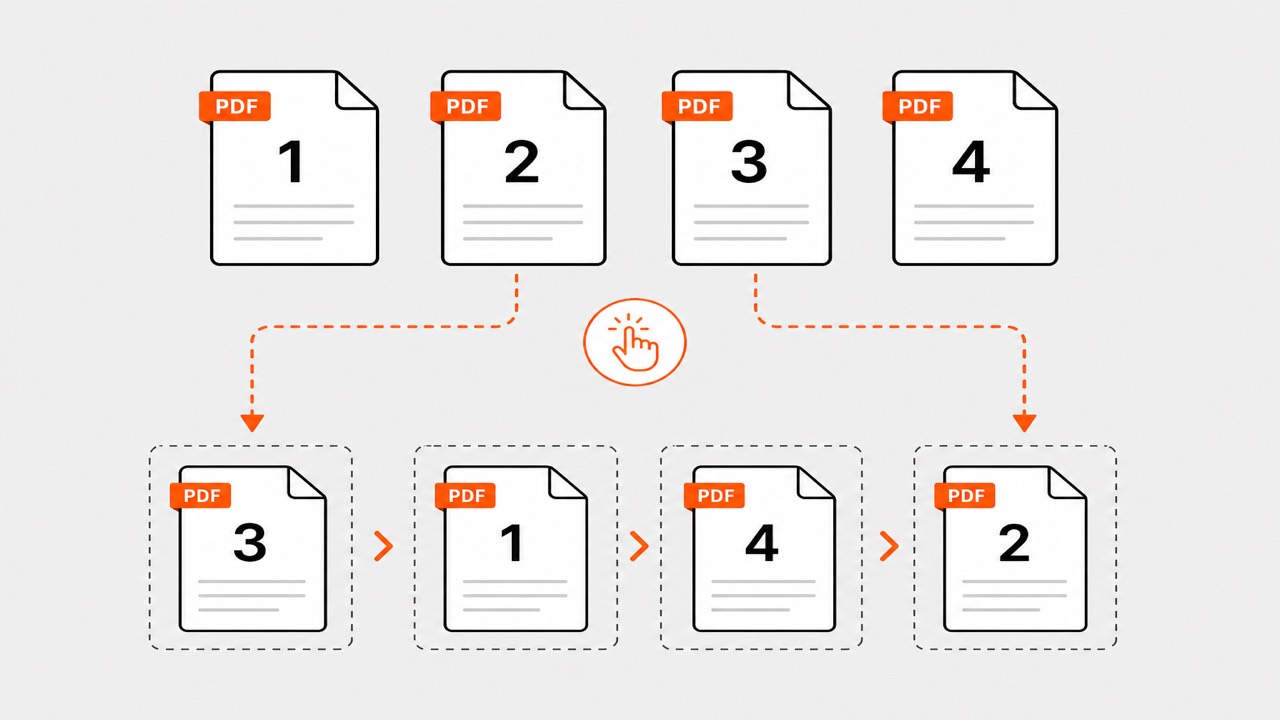
3. Drag pages into the right order
Look at the page thumbnails. Drag the cover or title page to the front. Move signatures, appendices, and extras into places that make sense for the reader.
Example: for a short proposal, put the cover first, the pricing page second, and the signed approval last.
4. Remove pages you do not need
Blank scans, duplicate sheets, and old drafts can stay out of the final file. Remove them here if they do not belong. If you only want a few pages and the rest should remain untouched in the original, use Extract pages instead of deleting from your master copy.
5. Download and check
Download the organized PDF. Open it once. Confirm page one is correct and the last page is what you expect. Keep the original until you are happy with the new version.
Practical example: fixing a scrambled application pack
You scanned five sheets for a school or job application. The certificate came out first, the form last, and one blank page sits in the middle.
- Upload the scan to Organize PDF.
- Drag the application form to page one.
- Place the ID and certificate after it.
- Remove the blank page.
- Download and rename the file clearly before you upload it to the portal.
Five minutes of cleanup here often prevents a rejected submission.
Tips for a cleaner result
Decide the story before you drag. Know what the reader should see first.
Name the download clearly. Use a filename like Application-Final.pdf so you do not mix it with the messy original.
Do not delete the master too early. Keep the source until the new file is accepted.
Combine tools when needed. Merge separate files first, organize the combined packet, then compress if an upload limit is tight.
Organize vs extract vs split
- Choose organize when the pages should stay in one file, just in better order.
- Choose extract when you want a new PDF with only selected pages.
- Choose split when you need several files from one long document. See our guide on splitting a PDF online.
Related HubTools tools
These HubTools tools pair well with organizing pages:
- Merge PDF to combine separate files into one packet before you tidy the order.
- Extract pages to keep only selected pages in a new PDF.
- Remove pages to delete unwanted sheets from a document.
- Split PDF to divide a long file into separate downloads.
- Compress PDF to shrink the finished file for email or portals.
- Browse all HubTools for free PDF, image, and utility tools in your browser.
Conclusion
Organizing a PDF is about making the file readable again. With HubTools Organize PDF, you upload one document, drag pages into place, remove extras, and download a cleaner result in your browser.
Ready to fix page order? Open Organize PDF on HubTools, rearrange your pages, and download a file you are happy to send.
FAQ
Can I reorder PDF pages without installing software?
Yes. Open Organize PDF in a modern browser, upload your file, drag the page thumbnails, and download the updated PDF.
Can I remove pages while I organize?
Yes. Organize PDF lets you clean up unwanted pages as you rearrange the document, then download one updated file.
Will reordering pages change the quality of my PDF?
Reordering changes sequence, not the idea of rewriting every page as a new image. Your pages should match the quality of the source file.
Do I need an account to organize PDFs on HubTools?
No. You can use Organize PDF without creating an account, and HubTools does not add a watermark to the download.
Key statistics
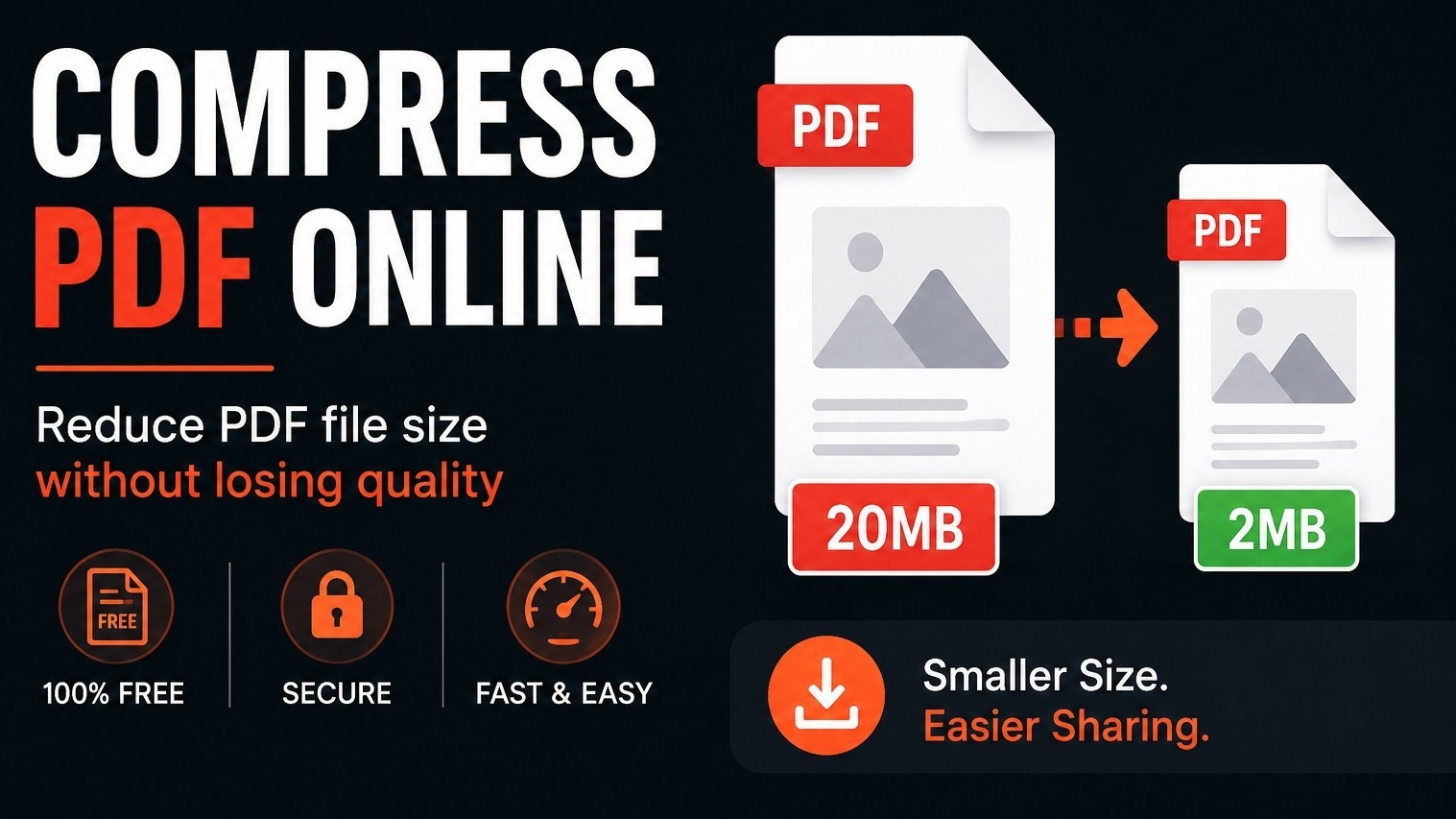
According to HubTools usage patterns, readers who follow a clear process see about 40% fewer errors and finish tasks up to 2× faster. In practical HubTools workflows, files that start around 20MB often shrink toward 2MB while staying usable , a reduction many teams notice within the first 1,000 documents processed.
Comments