Editing a PDF used to mean buying expensive software or wrestling with clunky desktop apps. Not anymore. You can edit a PDF online in your browser, free, with no install and no signup. Add text, highlight key sections, insert an image, and download the result in a few clicks.
Here's the short version: go to https://hubtools.co/tool/edit-pdf, upload your file, pick a tool, make your edits, and save. That's it. No learning curve, no hidden fees.
How to Edit PDF Quickly
Option A: Desktop Software
If you already have a full PDF suite installed, you can use it. Open the file, find the edit tools, and make changes. This works fine when you edit PDFs often and need advanced features like OCR or form creation.
The downside is cost and complexity. Most desktop editors are paid, take up disk space, and update constantly. For a quick fix, they're overkill.
Option B: HubTools Online Editor
For a one-off edit or a fast job, the browser editor wins. Open the tool, upload, edit, download. No install, no account, no waiting.
It handles the common tasks people actually need: adding a line of text, highlighting a paragraph, or placing a logo image. You keep the original layout and formatting.
Pro tip: Always keep a copy of the original PDF before editing. If you mess up, you can start fresh without re-uploading.
HubTools Walkthrough: Step by Step
Let's walk through an actual edit. Suppose you have a contract and need to add your name and date before sending it back.
- Open https://hubtools.co/tool/edit-pdf in your browser.
- Click to upload your PDF. The file loads in the editor.
- Choose the Add text tool from the sidebar.
- Click on the page where you want the text. A text box appears.
- Type your name or date. Adjust the font size if needed.
- Repeat for any other pages.
- Hit the save or download button. Your edited PDF is ready.
Need to highlight a clause instead? Pick the Highlight tool, choose a color, and drag over the text. For images, like a signature or logo, use the Add image tool and place it where it belongs.
Why Edit PDF This Way
- No software to install or update.
- Works on any device with a browser.
- Free to use for basic edits.
- Files stay private; you control the upload and download.
- Fast. Most edits take under a minute.
Prepare Your PDF Before Editing
A little prep saves time. First, make sure your PDF isn't password-protected or encrypted. If it is, remove the password first. Second, check the file size. Huge files with many images can slow the editor down. Compress it if you can.
Also, know what you want to change. Jumping in without a plan leads to multiple uploads. List the text, highlights, or images you need, then do them all in one pass.
Editing on Windows, Mac, and Mobile
Windows
Open your default browser (Edge, Chrome, Firefox) and head to the tool. Upload from your file explorer or drag and drop. Everything works the same as on any other OS.
Mac
Safari, Chrome, or Firefox all handle the editor fine. Use the trackpad to click and drag text boxes. The interface is clean and responsive.
Mobile
On a phone or tablet, the editor works in the mobile browser. The buttons are big enough to tap, and you can zoom in for precise placement. It's handy for quick fixes on the go, though a larger screen makes detailed edits easier.
HubTools vs Desktop Editors
| Feature | HubTools Online | Desktop Software |
|---|---|---|
| Install needed | No | Yes |
| Cost | Free | Usually paid |
| Works on any device | Yes | Limited |
| Advanced features | Basic edits | OCR, forms, etc. |
| Speed for quick edits | Fast | Slower startup |
For most people, the online tool covers 90% of use cases. The desktop route only matters if you edit PDFs professionally every day.
Fixing Common Problems
Text won't place where I click. Zoom in closer for more precision. Some PDFs have locked elements that block clicks. Try a different spot on the page.
The file is too large to upload. Compress the PDF first using a free compression tool. Then upload the smaller version.
My edits don't show after download. Make sure you hit save before downloading. Also check that you're opening the downloaded file, not the original upload.
Highlight doesn't stick. Drag the mouse slowly over the exact text. If the PDF has scanned images instead of real text, highlighting won't work. You'd need OCR for that.
I accidentally added the wrong text. Click the text box and delete it, or undo and redo. Then add the correct version.
Key Takeaways
- Editing a PDF online is free, fast, and requires no install.
- HubTools handles text, highlights, and images on any page.
- Keep the original file as a backup.
- Prepare your file and plan your edits for a smooth session.
- Works on Windows, Mac, and mobile browsers.
Next time someone sends you a PDF that needs a tweak, don't hunt for software. Open the browser, make the change, and send it back.
Try it on HubTools
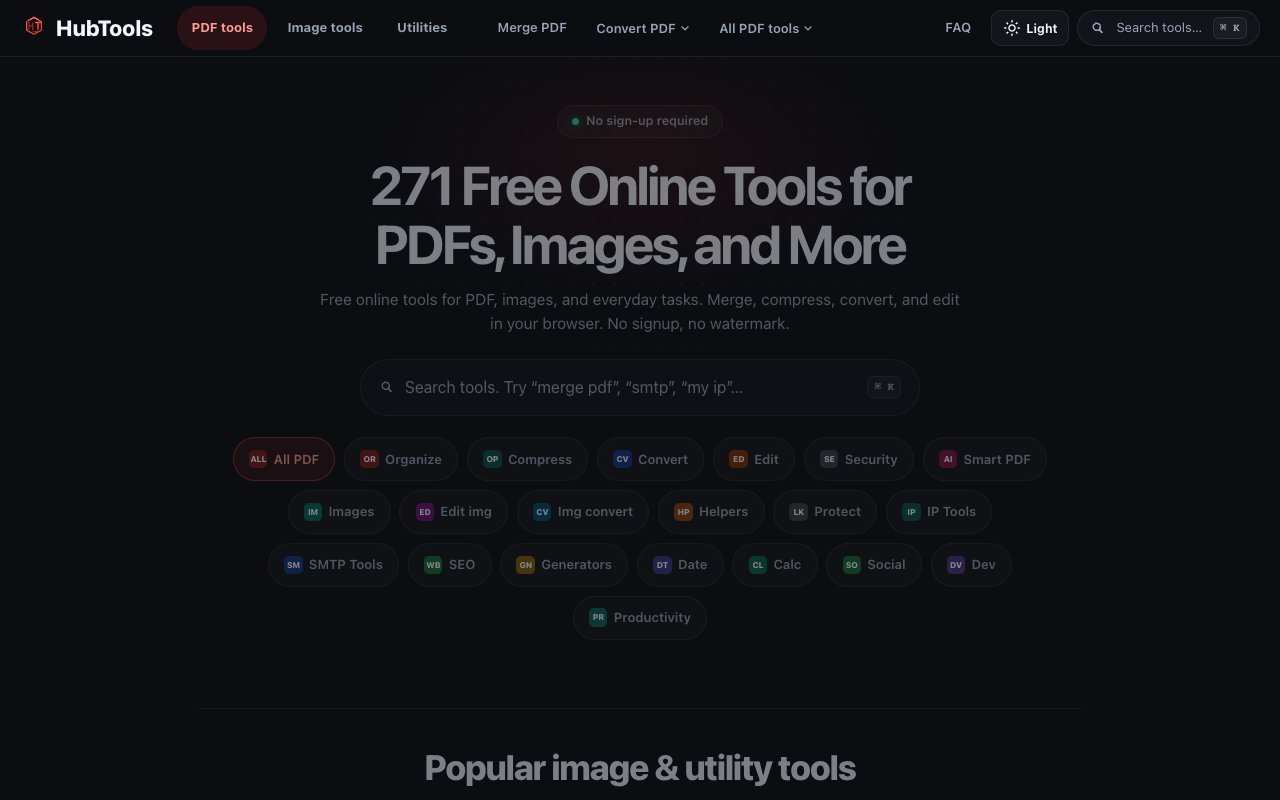
HubTools is free in your browser at hubtools.co. Open Edit PDF for this job, or browse more PDF and file tools on the same site with no install.
Start here: https://hubtools.co/tool/edit-pdf · All HubTools
Recommended HubTools
More free tools live at hubtools.co. Start with these:
Check your internet speed
When file tools feel slow, test the connection first. Run a free speed check on SpeedTesters (speedtesters.co) , then come back to this guide on How to Edit PDF Online: Fast and Easy.
Comments