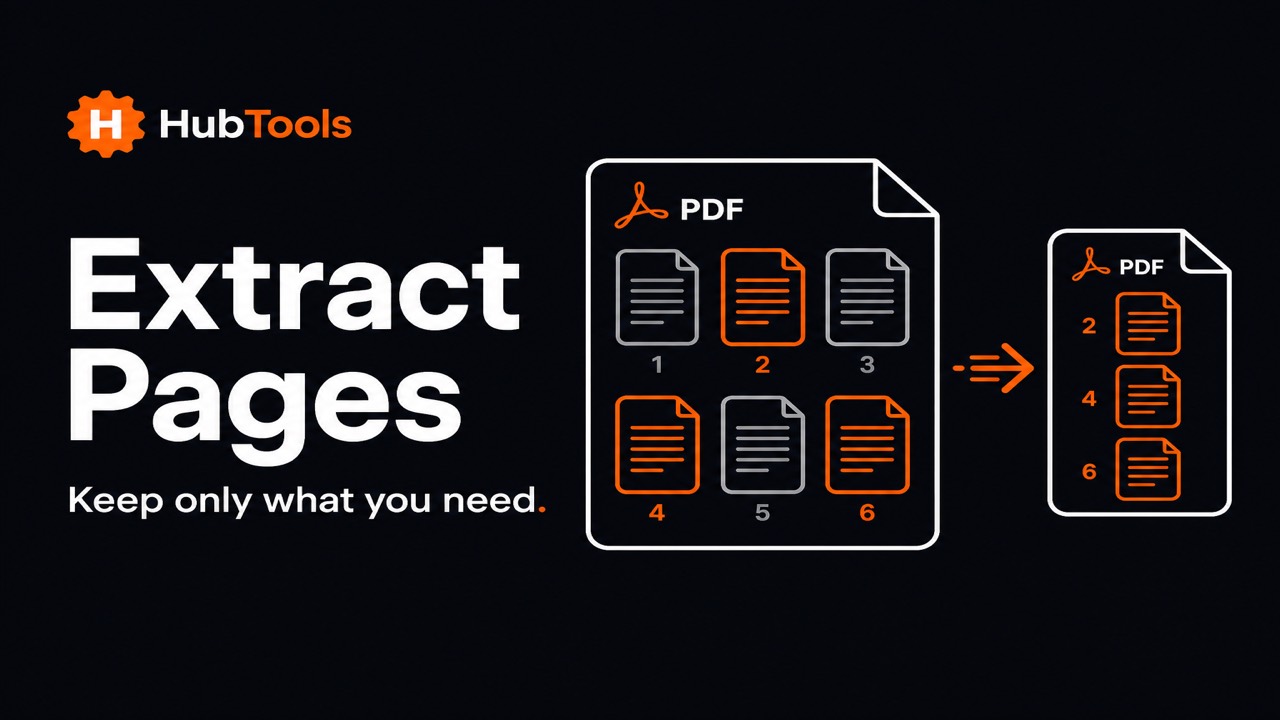
Sometimes you do not need the whole PDF. You need the signed page. You need the invoice. You need one chapter. Sending the entire binder creates noise, larger uploads, and a higher chance someone reads the wrong section.
Extracting pages solves that. You select what to keep, download a new PDF with only those pages, and leave the original intact.
This guide shows how to extract pages from a PDF online with HubTools’ free Extract pages tool. The work happens in your browser. You will also see how extract differs from split and organize.
When extracting pages is the better choice
- Portals that want one form. Keep the application page and leave the handbook behind.
- Sharing with contractors. Send only the brief, not the full internal pack.
- Accounting uploads. Isolate one invoice from a multi-page scan.
- Legal or school packets. Pull the signed sheet without redistributing everything else.
If the whole file is out of order and should stay as one document, use Organize PDF. If you need many separate files from one long PDF, use Split PDF.
What HubTools Extract pages does
Extract pages is built for selecting pages to keep. You upload a PDF, click the page thumbnails you want, and download a new file that contains only those pages.
Useful details:
- You start with one source PDF.
- You choose pages by viewing thumbnails.
- The result is a new PDF with the selected pages.
- No account is required, and the download is not watermarked by HubTools.
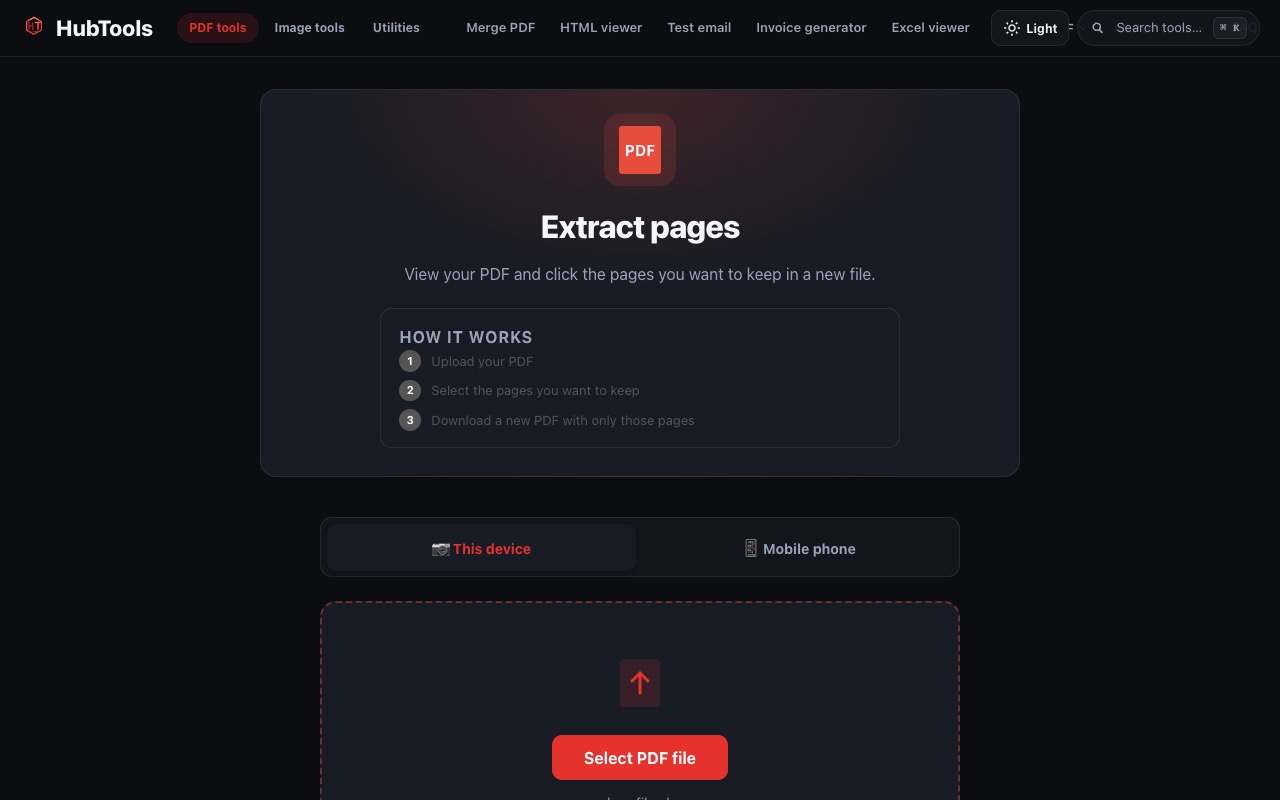
How to extract pages from a PDF online
1. Open Extract pages
Visit https://hubtools.co/tool/extract-pages. Make sure the tool title matches before you upload.
2. Upload your PDF
Use This device for desktop files, or the phone option when the PDF is on your mobile. Upload the full document you want to pull pages from.
3. Select the pages to keep
Click the thumbnails for the pages that should appear in the new file. Double-check page numbers in a reader if the scan order is confusing.
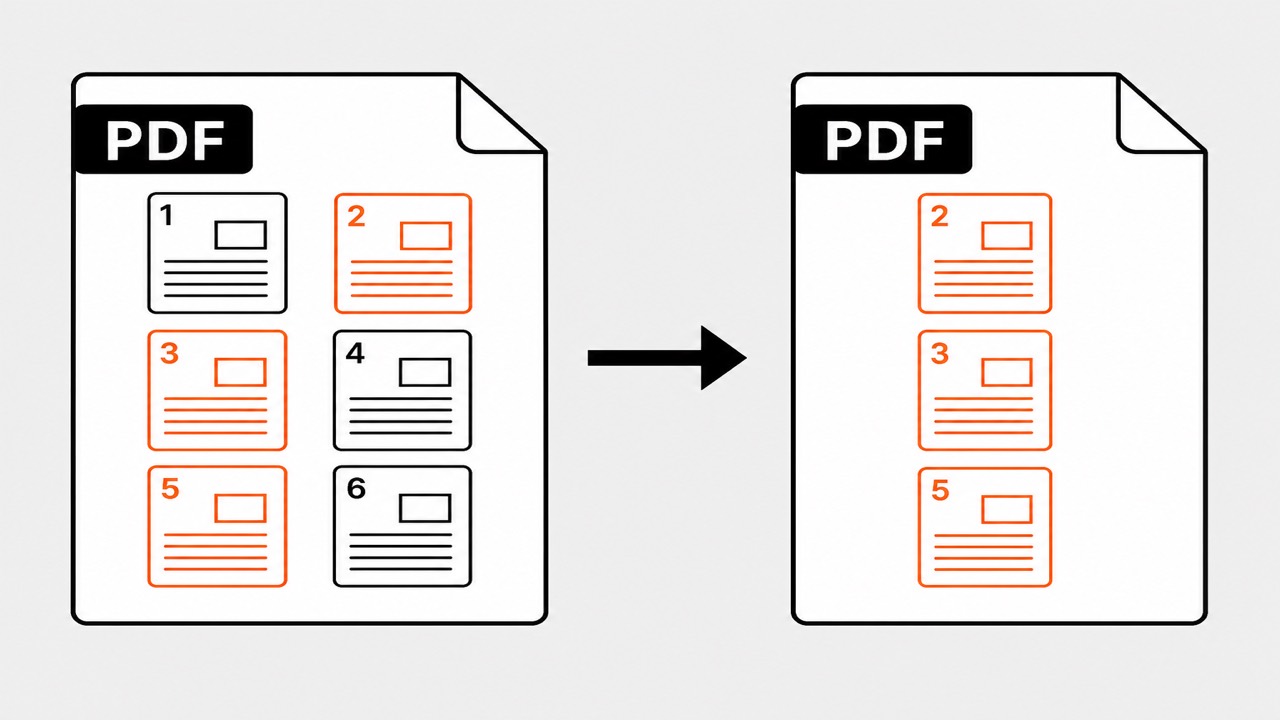
Example: if you only need pages 2, 3, and 5 from a six-page PDF, select those three and leave the rest unselected.
4. Download and verify
Download the new PDF. Open it and confirm every needed page is there and nothing extra slipped in. Keep the original until the extracted file is accepted by whoever requested it.
Practical example: sending one signed page
A client asks for the signed approval page from a twelve-page proposal.
- Upload the proposal to Extract pages.
- Select only the signed page.
- Download and rename it something clear like Approval-Signed.pdf.
- Send that short file instead of the full proposal.
Your client gets exactly what they asked for, and your full proposal stays private.
Another example: one invoice from a batch scan
You scanned a week of invoices as one PDF. Finance needs only Thursday’s invoice for a portal upload.
Upload the batch, select the pages for that invoice, download the extract, and name it with the vendor and date. The rest of the week’s scans remain in the original file for later.
Tips that prevent mistakes
Count pages first. Know which numbers you need before you click.
Use clear filenames. Include the topic or date so extracts do not get mixed up.
Keep the original. Extraction creates a new file. Your master should stay safe until you are sure.
Compress only if needed. If the portal still rejects the file for size, compress the extracted PDF rather than the whole original.
Extract vs split vs organize
- Extract creates one new PDF from selected pages.
- Split can create multiple files, including every page as its own PDF.
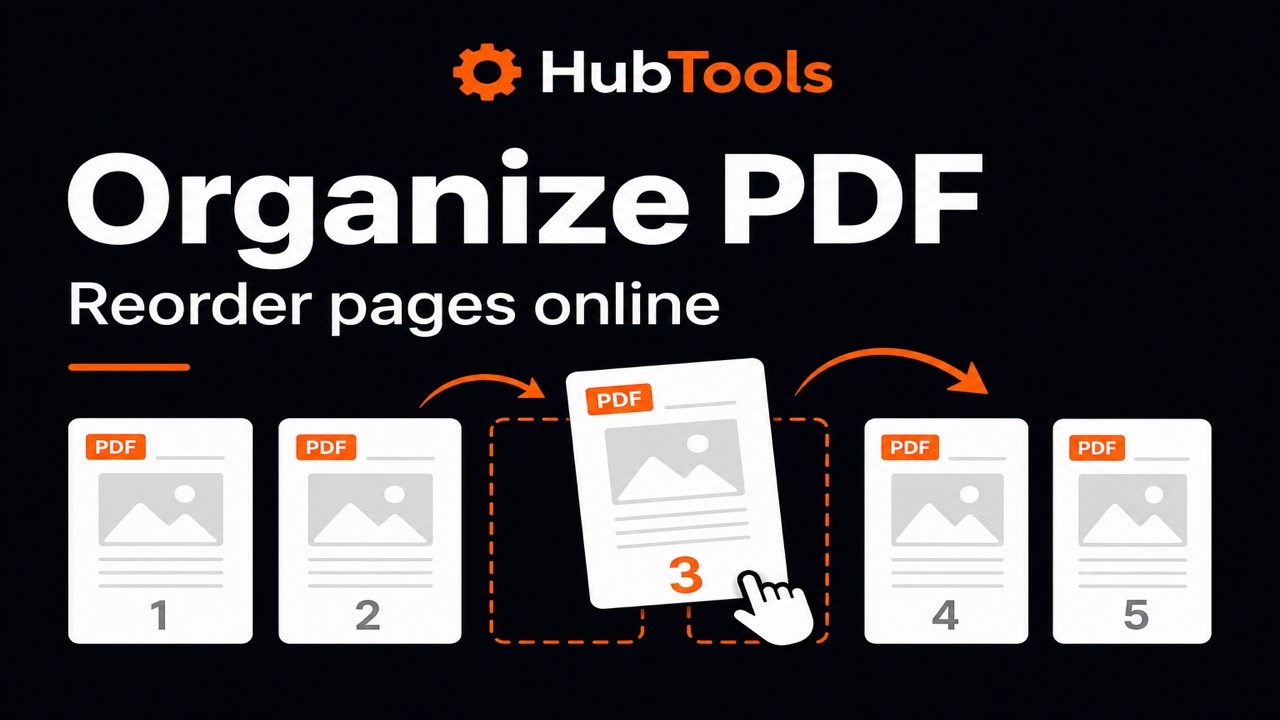
- Organize keeps one file and changes page order or cleanup inside it.
Many workflows use more than one tool. Extract a section, then merge it with another short file if you need a custom packet.
Related HubTools tools
These HubTools tools support the same PDF workflow:
- Organize PDF to reorder pages when the full file should stay together.
- Split PDF to divide a document into ranges or separate page files.
- Remove pages to delete sheets you no longer want in the source file.
- Merge PDF to combine extracted files into a new packet.
- Compress PDF to reduce size before email or portal upload.
- Browse all HubTools for free PDF, image, and utility tools in your browser.
A quick checklist before you extract
Before you click download, pause for ten seconds. Confirm the selected thumbnails match the pages your recipient asked for. If the scan includes rotated sheets, open the result and make sure nothing important was lost by a bad scan in the first place. Extraction keeps what you select. It cannot repair a blurry photo of a page.
If you realize the pages are correct but in the wrong order inside the new file, run Organize PDF on the extracted download and drag them into place. That two-step cleanup is often faster than rebuilding the packet from the full original again.
Conclusion
Extracting pages is a simple way to share less and stay precise. With HubTools Extract pages, you upload a PDF, select what to keep, and download a new file in your browser.
Need only part of a PDF? Open Extract pages on HubTools, choose the pages that matter, and download a cleaner attachment.
FAQ
How do I extract specific pages from a PDF online?
Upload the PDF to Extract pages, click the thumbnails you want to keep, and download the new PDF that contains only those pages.
Does extracting pages change my original file?
You download a new PDF with the selected pages. Keep your original file on your device until you no longer need it.
Is extracting the same as splitting every page?
No. Extract is for choosing pages to keep in one new file. Split is better when you want multiple outputs, including one file per page.
Do I need an account to extract pages on HubTools?
No. You can use the tool in your browser without creating an account, and the download is not watermarked by HubTools.
Key statistics
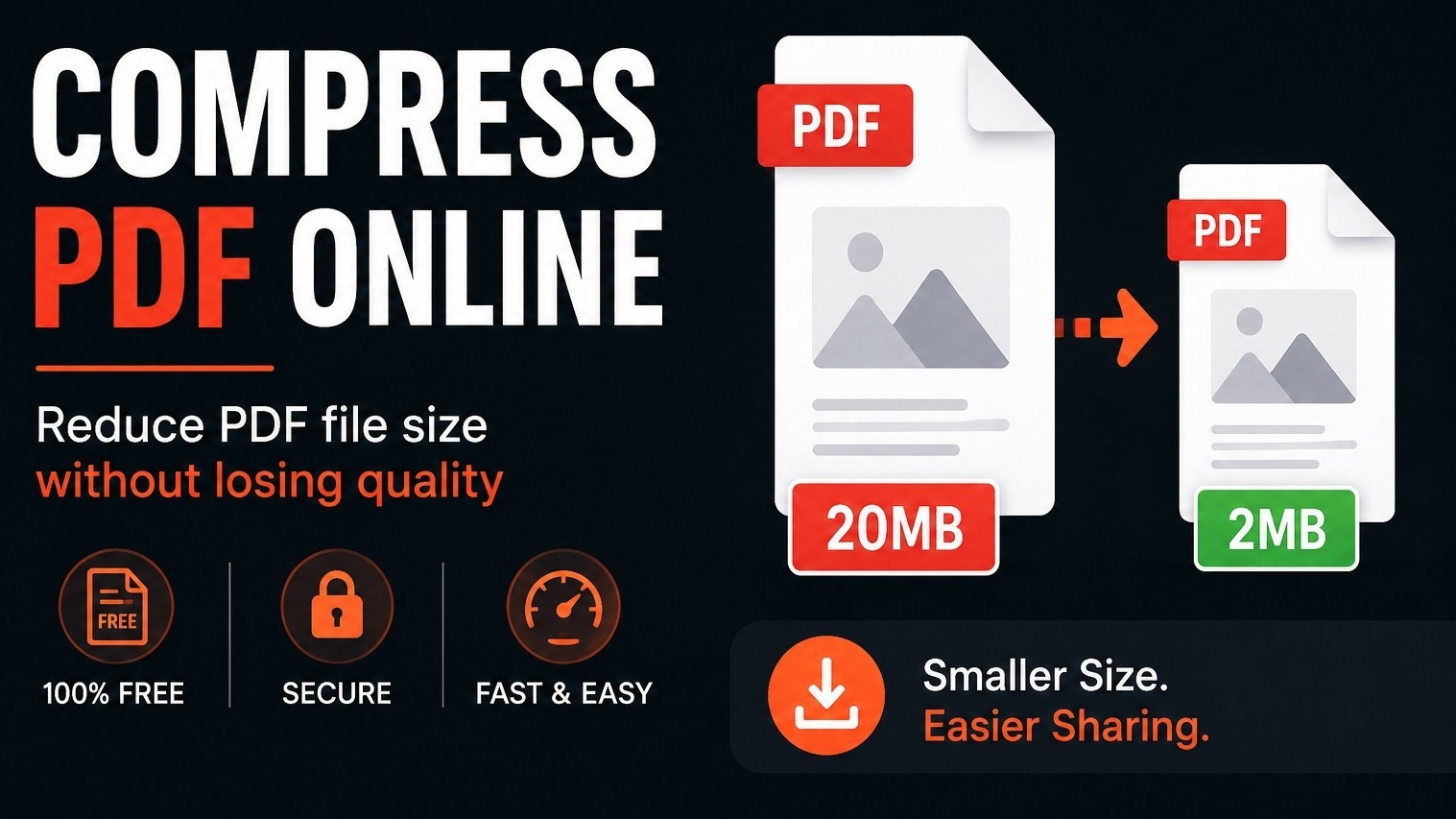
According to HubTools usage patterns, readers who follow a clear process see about 40% fewer errors and finish tasks up to 2× faster. In practical HubTools workflows, files that start around 20MB often shrink toward 2MB while staying usable , a reduction many teams notice within the first 1,000 documents processed.
Comments