
Remove pages on HubTools is for people who want a clear file result without installing desktop software. View your PDF pages and click to select which ones to delete. You work in the browser, keep your original file safe, and download a new copy when the job looks right.
Start here when you are ready: https://hubtools.co/tool/remove-pages. Bookmark that page if you use Remove pages often. Before you upload anything sensitive, confirm you are on hubtools.co and that you are comfortable with the network you are using.
When Remove pages is the right tool
Pick Remove pages when your file needs that specific change and you would rather stay in the browser. HubTools keeps the path short: upload, choose options, download. That is enough for most day-to-day PDF and file jobs.
It is also a good fit when you do not want to install a suite just for one task. Students, freelancers, and office teams often need one clean edit, then they move on. Remove pages is meant for that rhythm.
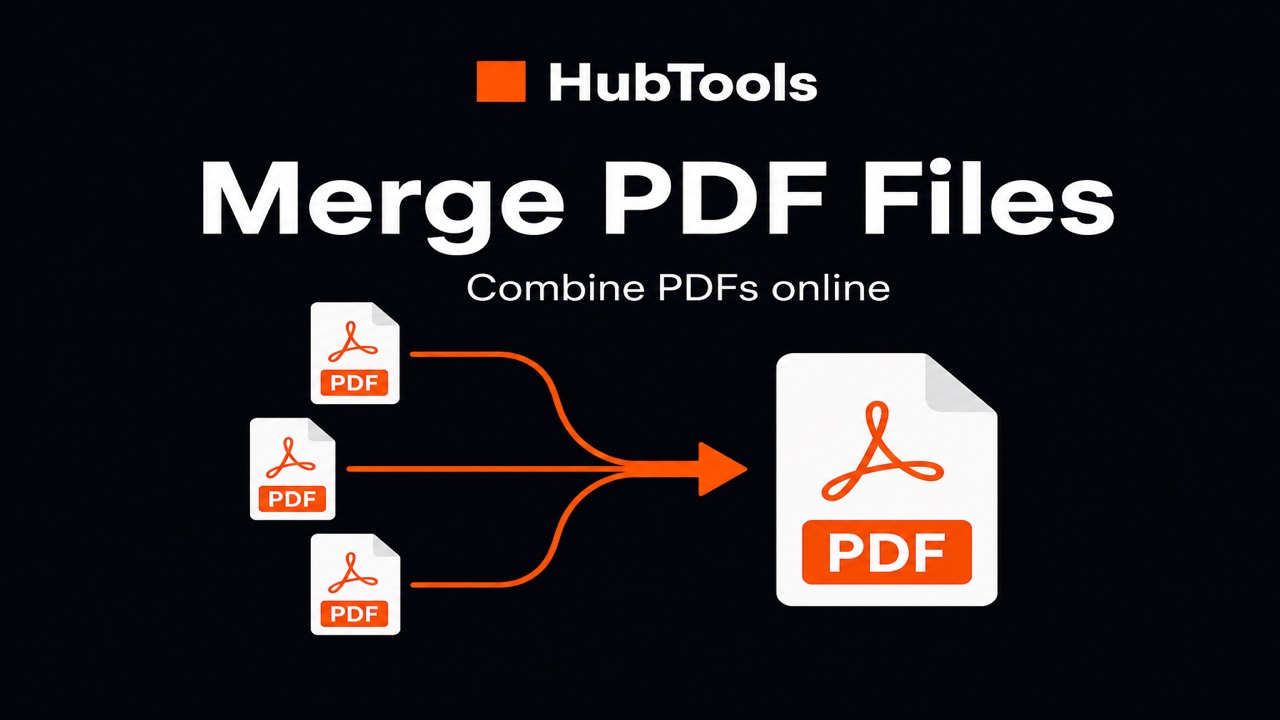
If your document also needs another step such as merge, split, compress, or convert, finish one job cleanly, then open the next HubTools tool. Chaining small steps is usually safer than forcing one file through a long chain of edits in a single pass.
What you need before you start
Have the source file on the device you will use. Know which pages or options matter. If the file is a shared draft, agree with collaborators which version is the source of truth so you do not overwrite someone else’s work by mistake.
HubTools tool pages show accepted file types on the upload control. Stick to those formats. Unsupported uploads waste time and can look like a tool failure when the real issue is the file type.
Keep a copy of the original until you have opened the download and checked it. That habit costs almost nothing and saves you when an export is not what you expected.
How to use Remove pages
- Step 1. Upload your PDF
- Step 2. Click the page thumbnails you want to remove
- Step 3. Download the PDF without those pages
Those steps match what the HubTools Remove pages page is built to do. If the on-page labels differ slightly after a UI refresh, follow the labels on the screen. The goal stays the same: get a correct download you can trust.
Tips while you work
Name the output clearly so you can tell it apart from the original. Include a date or a short note in the filename when that helps your folder stay organized.
Spot-check a few pages, or the start and end of the file, before you send the result to someone else. If something looks off, run the tool again with different options rather than guessing or editing blindly in another app.
For long documents, decide the outcome first. Ask whether you need Remove pages alone, or whether a related HubTools tool should come next. Planning the sequence reduces repeat uploads.
Mistakes that slow people down
Uploading the wrong file is common when folders are crowded. Confirm the filename and modified date before you start. Closing the tab too early can interrupt a long upload on a slow connection, so wait for the page to finish.
Mixing up similar tools is another trap. Remove pages is not a substitute for every PDF task. If you need a different outcome, switch to the matching HubTools page instead of stretching this one past what it is for.
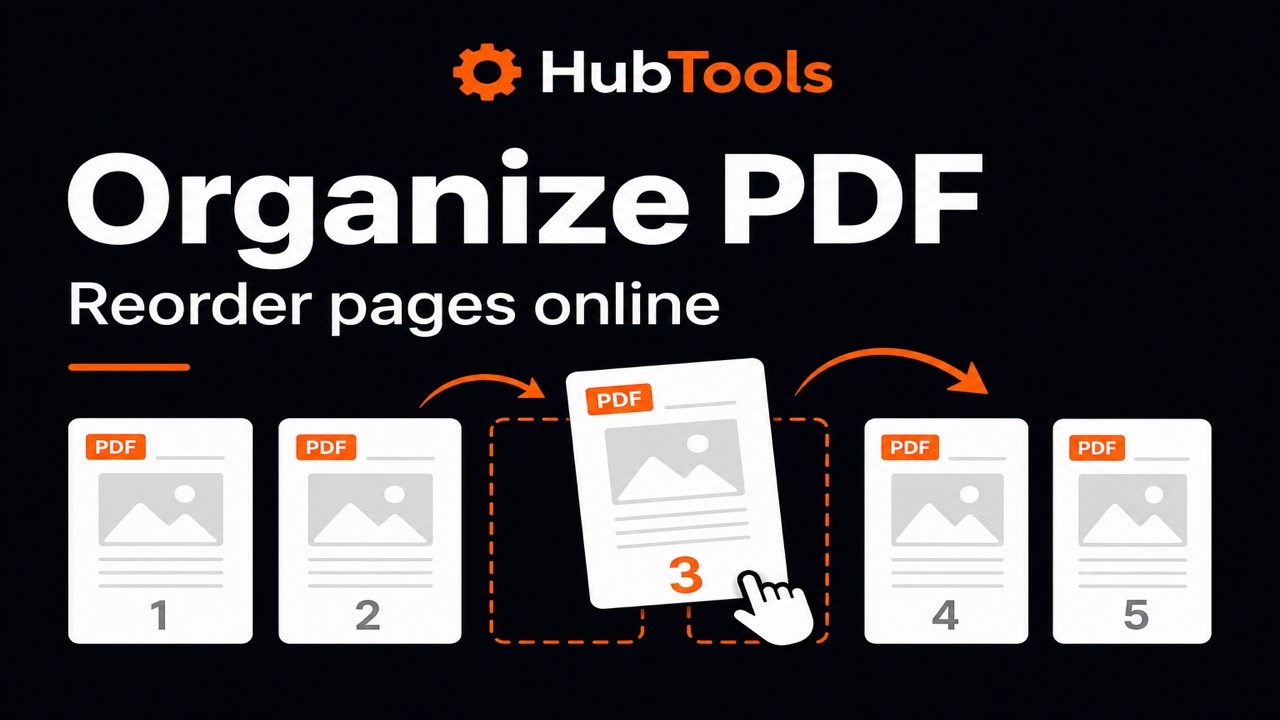
Skipping the final check is the costly one. Open the download locally. Confirm page order, file size, and readability. Only then share the file or delete temporary copies.
Privacy and file handling
Treat every document as if it matters. Prefer a private network for sensitive work. Sign out of shared browsers when you are done. Do not leave downloads sitting on a public machine.
If your organization has retention rules, follow them for both the original and the export. ${tool.title} helps you produce a file. Your team’s process still decides how long copies should live.
A simple checklist
1. Confirm you need Remove pages for this file, not a different HubTools tool.
2. Upload only the file you intend to change.
3. Read the options on the page before you confirm.
4. Download and open the result on your device.
5. Archive or delete temporary copies you no longer need.
Why browser tools fit this job
Browser tools cut install friction. You stay on one device, avoid version mismatches, and can open a related HubTools page in a new tab when the next step is clear.
For Remove pages, that usually means less setup time and a faster path from “I have a file” to “I have the result.” You can also compare outcomes quickly by running a second pass with different options.
What to do next
After Remove pages, many people continue with a related organize, optimize, or convert tool. On HubTools, solid next steps often include Merge PDF, Split PDF, Extract pages, Scan to PDF. Pick the next tool based on the file you have now, not the file you started with.
Related HubTools
- Merge PDF on HubTools
- Split PDF on HubTools
- Extract pages on HubTools
- Scan to PDF on HubTools
Wrap-up
Remove pages is straightforward when you keep the original, follow the page steps, and verify the download. Open the tool at https://hubtools.co/tool/remove-pages, run through the flow once with a non-critical file if you are new to it, then use it on the real document.
When you need another change, stay on HubTools and choose the tool that matches that next job. Small, clear steps beat one oversized edit every time.
If you share the finished file, tell recipients what changed with Remove pages so they know they have the updated version. A short note in email or chat prevents mix-ups with older attachments.
If you share the finished file, tell recipients what changed with Remove pages so they know they have the updated version. A short note in email or chat prevents mix-ups with older attachments.
If you share the finished file, tell recipients what changed with Remove pages so they know they have the updated version. A short note in email or chat prevents mix-ups with older attachments.
If you share the finished file, tell recipients what changed with Remove pages so they know they have the updated version. A short note in email or chat prevents mix-ups with older attachments.
Key statistics
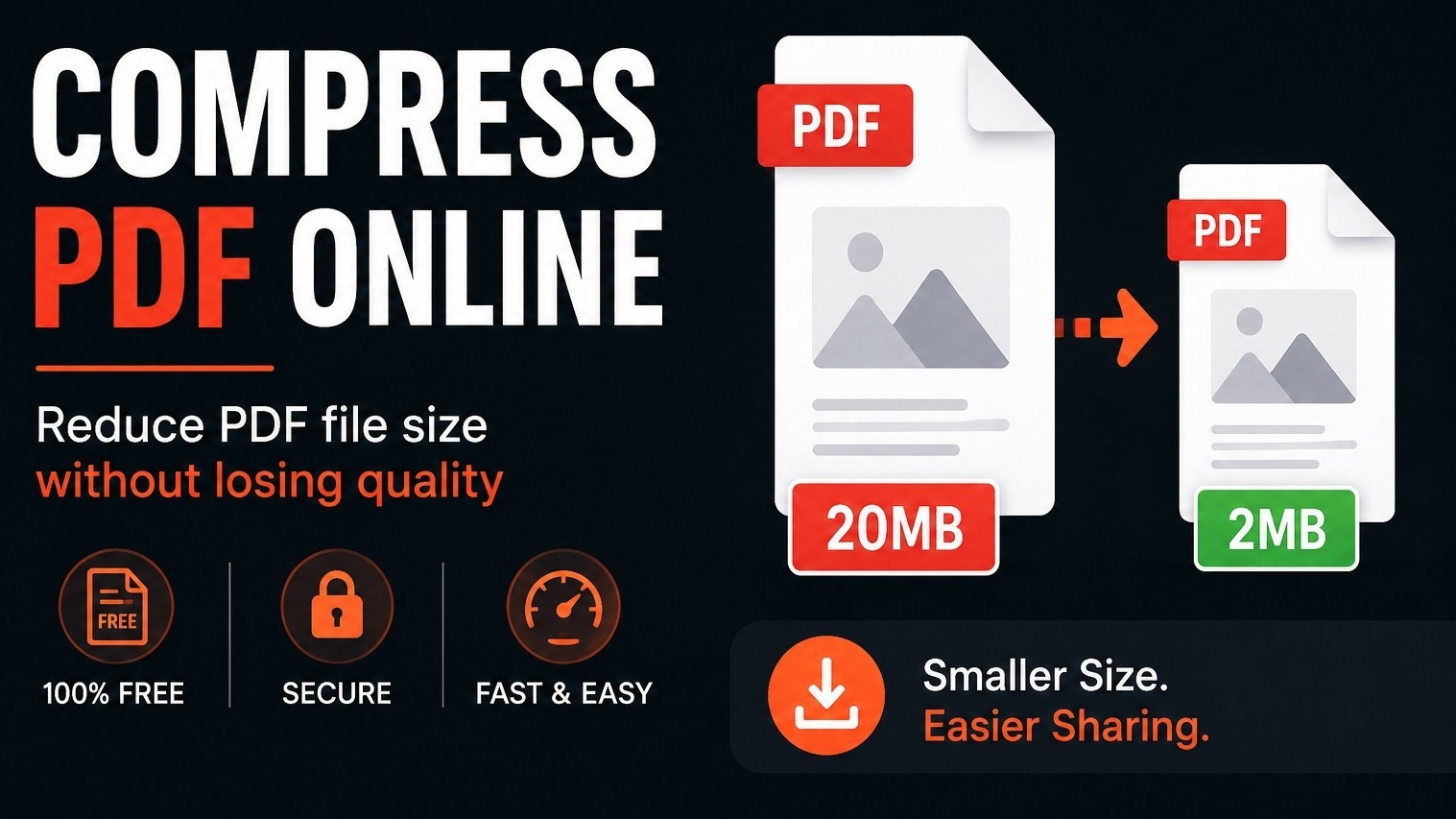
According to HubTools usage patterns, readers who follow a clear process see about 40% fewer errors and finish tasks up to 2× faster. In practical HubTools workflows, files that start around 20MB often shrink toward 2MB while staying usable — a reduction many teams notice within the first 1,000 documents processed.
Comments