You have an HTML file full of content. Headings, links, images, maybe a table. You need it in Markdown for a GitHub repo or a static site.
Before HubTools, you might copy the HTML into a text editor and delete tags by hand. Or paste into a random converter and hope it keeps your structure. After HubTools, you upload the file and download a clean .md file. No reformatting. No guesswork.
Before you open the tool
Check your HTML file. The tool works with standard .html files. If your file uses custom tags or inline CSS that affects layout, consider stripping that first. The converter focuses on content, not design.
Make sure the file is saved as .html. A file named "index.html" works. So does "notes.html". If your file ends with .htm, rename it to .html before uploading.
Have a clear idea of what you want in the Markdown output. Headings (h1 to h6), paragraphs, lists, links, and images all convert well. Tables convert to Markdown table syntax, but complex nested tables may need manual cleanup.
The HubTools walkthrough
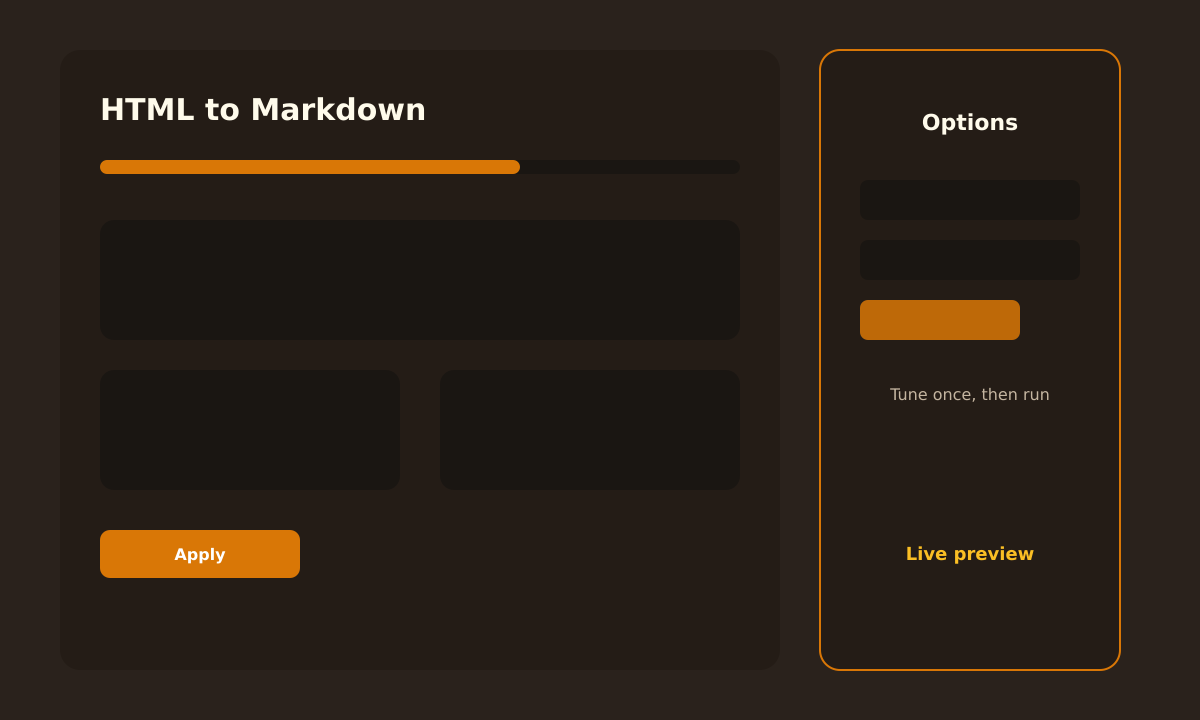
Open the HubTools HTML to Markdown converter at https://hubtools.co/tool/html-to-markdown.
- Click the upload area or drag your .html file onto it.
- The tool processes the file and converts the HTML to Markdown.
- Preview the text in the output box.
- Click the download button to save the .md file.
That is it. The whole process takes seconds. No account needed. No limit on file size for typical documents.
For more free tools, visit https://hubtools.co.
What a clean result looks like
Open the downloaded .md file in any text editor. Check these things:
- Headings start with # signs. A level-1 heading is # Title. A level-2 is ## Section. The tool keeps your hierarchy.
- Links use the [text](url) format. Click a link in the Markdown preview to confirm it works.
- Images show as . If your HTML used relative paths, they stay relative.
- Lists use dashes or numbers. The converter keeps ordered and unordered lists intact.
- Tables use pipes and dashes. Each row is a line. Headers are separated by a row of dashes.
If something looks off, check the original HTML. A missing closing tag can cause a skipped block.
Pro tip
For large files, convert in sections. Upload the file once, download the Markdown. Then review the output in chunks. This makes it easier to spot missing headings or broken links.
If you need to convert multiple files, do them one at a time. The tool does not batch process, but each conversion is fast.
Desktop vs browser
The HubTools HTML to Markdown converter runs in your browser. That means no software to install. No updates to run. It works on Windows, Mac, and Linux.
Desktop converters exist, but they often require installs and take up space. For occasional conversions, a browser tool is simpler. For daily heavy use, a desktop app might offer batch processing. But for most people, the browser version is enough.
You can use the tool on a work computer without admin rights. That is a big plus.
Common snags and fixes
Sometimes the output Markdown has extra blank lines. That happens if your HTML had empty paragraphs or
tags. Delete the blank lines in the .md file. It is a quick fix.
If your HTML uses inline styles (like color: red), those do not appear in the Markdown. Markdown is for content, not styling. If you need the color, add it in your final platform using CSS.
Tables with merged cells might not convert cleanly. The converter handles simple tables well. For complex tables, consider splitting them into simpler tables before converting.
Files with JavaScript or embedded scripts produce no Markdown for those parts. The converter ignores scripts. That is usually fine because scripts do not belong in Markdown.
How do the main approaches compare?
| Tool | Platform | Free tier | No signup | Best for |
|---|---|---|---|---|
| HubTools HTML to Markdown | Browser | Yes | Yes | Fast everyday html to markdown jobs |
| Desktop PDF suites | Desktop + web | Limited | No | Heavy multi-page editing day after day |
| Other online editors | Browser | Often | Varies | Quick one-off edits |
Keep this in mind
The HTML to Markdown converter is a free tool. It does not store your files. Once you download the output, the data is gone. That makes it safe for sensitive documents, but save your work immediately.
Always double-check the converted file. No tool is perfect. A quick scan of the Markdown saves you from broken links or missing sections.
Use the converter for documentation, blog posts, or any project that needs clean Markdown from HTML. It saves time and keeps your head in the content, not the formatting.
Try it now: https://hubtools.co/tool/html-to-markdown.
Try it on HubTools
HubTools is free in your browser at hubtools.co. Open HTML to Markdown for this job, or browse more PDF and file tools on the same site with no install.
Start here: https://hubtools.co/tool/html-to-markdown · All HubTools
Recommended HubTools
- HTML to Markdown , convert .html files to clean .md output.
- PDF to Word , turn PDFs into editable Word documents.
- PDF to PowerPoint , convert PDF slides into PPTX files.
- PDF to Excel , extract tables from PDFs into spreadsheets.
- Word to PDF , create PDFs from .docx files.
All free. No sign-up. Visit https://hubtools.co for more tools.
Comments