Maya runs a small design studio from her apartment. Last week, she finished a logo project for a local coffee shop. The client asked for an invoice. Maya used to open a heavy desktop program, wrestle with templates, and then export a PDF that often looked off. This time she did it differently. She opened her browser, went to the invoice generator on HubTools, filled in the details, and downloaded a clean PDF in under five minutes. No installation, no hassle.
What you need before you start
You don't need much. Just three things:
- Your company and client details (names, addresses, emails).
- A list of line items: what you are charging for, quantity, rate.
- Any invoice number and due date.
That's it. No special software, no account, no credit card. Just a browser and a quiet minute to type.
Step-by-step on HubTools
Here's how to create your invoice with the invoice generator.
- Open the tool in your browser. It loads fast and shows a simple form.
- Enter your company name, address, and contact info in the company fields.
- Enter the client's details in the client fields.
- Set the invoice number, issue date, and due date.
- Add line items. For each item, enter a description, quantity, and rate. The tool calculates totals automatically.
- If you need to show salary details, use the optional salary section. This is handy if you are billing for hourly work or subcontractor pay.
- Review everything on the preview. Check names, numbers, and totals.
- Click generate and download the PDF. Your invoice is ready to send.
The whole process takes a few minutes, and you can do it again anytime for a new client.
Why this beats installing software
Desktop invoice apps take up space, need updates, and often require a license. With HubTools, you never install anything. The tool lives in your browser, so it works on any computer or laptop with internet. You just open the page and go. No version conflicts, no missing fonts, no compatibility issues.
Pro tip for your scenario
If you're a freelancer like Maya, keep a text file with your standard line items and rates. When you need an invoice, copy and paste them into the tool. It saves time and keeps your invoices consistent. Also, set a clear due date on every invoice. It helps with cash flow and makes your payment terms explicit.
After you download
Once the PDF is on your computer, do a quick check. Open it and confirm the totals match what you expect. Then rename the file so it's easy to find later. Something like Invoice_2025-04-15_ClientName.pdf works well. When you send it to the client, attach the PDF directly. Don't paste the content in an email body. A professional invoice looks better as a file.
If you need to make changes after generating, just go back to the tool, edit the fields, and download a new version. No need to keep old files.
Related jobs next
After you generate an invoice, you might need to adjust other PDFs. For example, if you have a contract in PDF and want to add page numbers, or if you need to rotate a scanned document before attaching it. HubTools has a suite of PDF tools that chain together nicely. You can edit, watermark, rotate, and number pages all in the browser. No downloads, no friction.
Quick fixes
Sometimes things go wrong. Here are common issues and how to solve them.
- Totals look wrong. Double-check the quantity and rate for each line item. The tool calculates from what you enter, so a typo will show up.
- PDF doesn't download. Check your browser's download settings. Sometimes downloads are blocked or go to a downloads folder you don't see. Look for a small icon in the browser bar.
- Can't see the salary section. It's optional, so you may need to scroll or click to expand it. Look for a toggle or a heading that says "Salary details".
- Client info is missing. Make sure you filled in all required fields. If the tool marks something as required, it won't generate until you complete it.
One note on browsers
The tool works on any modern browser: Chrome, Firefox, Safari, Edge. You don't need a specific setup. Just make sure your browser is up to date, and the tool will run smoothly.
Key takeaways
- You can create a professional PDF invoice in minutes using HubTools invoice generator.
- No installation, no sign-up, no cost.
- Fill in company, client, and line items, then download the PDF.
- Keep a template of your common details to speed up future invoices.
- Chain with other HubTools PDF tools for a complete workflow.
Try it on HubTools
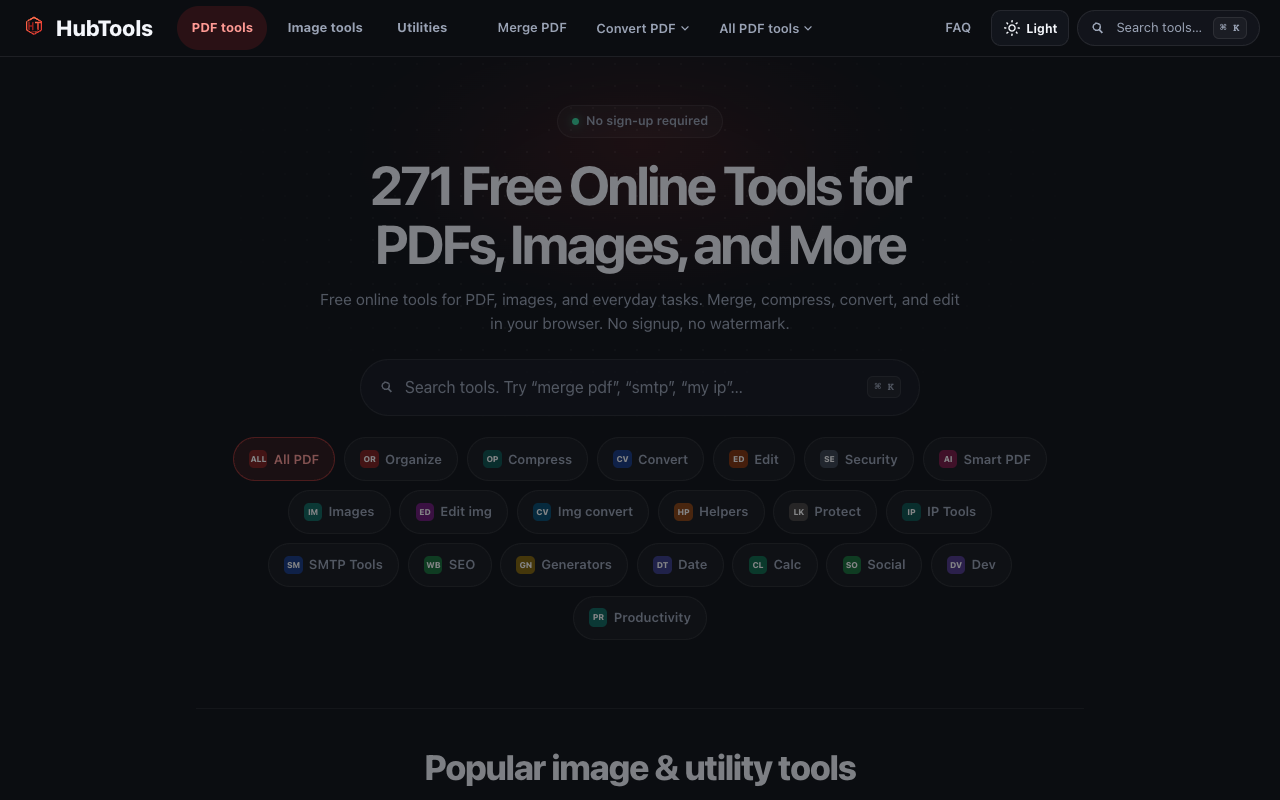
HubTools is free in your browser at hubtools.co. Open Invoice generator for this job, or browse more PDF and file tools on the same site with no install.
Start here: https://hubtools.co/tool/company-invoice · All HubTools
Recommended HubTools
More free tools live at hubtools.co. Start with these:
Check your internet speed
When file tools feel slow, test the connection first. Run a free speed check on SpeedTesters (speedtesters.co) , then come back to this guide on Need an Invoice Generator? Do It in Your Browser.



Comments