Need to open a PDF right now? Maybe it's a contract from a client, a manual for a device, or a scanned document from your bank. You don't want to install software or wait for a heavy app to load. You just want to see the file.
Use the HubTools PDF Viewer. It opens any PDF in your browser, keeps the file on your device, and lets you switch between documents without hassle. No uploads, no sign-ups, no waiting.
How to View PDFs Quickly
You have two solid ways to open a PDF fast. Pick what fits your setup.
Option A: Use Desktop Software
If you already have a PDF reader installed, like Adobe Acrobat Reader or a built-in viewer, you can double-click the file and it opens. That works fine for a single document. But if you're juggling multiple PDFs or want to avoid installing anything, the browser route is faster.
Option B: Use HubTools in Your Browser
Open https://hubtools.co/tool/pdf-viewer. Click the upload area, pick one or more PDFs from your computer or phone, and they appear in the viewer. That's it. The tabs above the viewer let you jump between files. Use the zoom controls to read small text or inspect details.
Everything runs locally. Your files never leave your device, so you can view sensitive documents without worrying about privacy.
Pro Tip: Keep Your Files Local
Many online PDF tools ask you to upload files to their servers. That can be slow and risky for private documents. HubTools PDF Viewer works differently. It processes the file in your browser, so your data stays put. Use this for contracts, tax forms, or anything you don't want floating around online.
HubTools Walkthrough: Step-by-Step
Here's exactly how to use the PDF Viewer.
- Go to https://hubtools.co/tool/pdf-viewer.
- Click the upload button or drag your PDF files into the drop zone.
- Wait a second for the files to load. They open automatically in the viewer.
- Use the tabs above the viewer to switch between multiple PDFs.
- Adjust the zoom with the buttons to read comfortably.
- Close the tab when you're done. Your files are not stored anywhere.
That's the whole process. No settings to fiddle with, no account to create.
Why Use a Browser-Based Viewer?
- No installs: Works on any device with a browser.
- Private: Files stay on your device.
- Fast: Opens PDFs instantly, even large ones.
- Multiple files: Switch between documents with tabs.
- Free: No cost, no limits.
How to Prepare Your PDFs for Viewing
A few small steps make viewing smoother.
- Keep file names clear. If you're opening several PDFs, name them so you know which is which at a glance.
- Check the file size. Very large PDFs (over 50 MB) might take a moment to load. That's normal.
- Use a recent browser. Chrome, Firefox, Safari, or Edge all work well. Older browsers may not support the viewer.
- Close other tabs. If the viewer feels slow, free up memory by closing unused tabs.
View PDFs on Windows, Mac, and Mobile
Windows
Open your browser (Edge, Chrome, Firefox) and go to the HubTools PDF Viewer. Drag your PDF into the window. It opens right away. No need to install anything.
Mac
Safari or Chrome works fine. Same process: go to the tool, upload the file, and view. The viewer handles PDFs from your Downloads folder or iCloud Drive.
Mobile
On your phone, open the browser and visit the tool. Tap the upload area and pick a PDF from your files or cloud storage. The viewer adjusts to your screen, and you can zoom with pinch gestures. It's handy for reading documents on the go.
HubTools PDF Viewer vs. Other Methods
| Method | Install Needed | Upload Required | Multiple Files | Privacy |
|---|---|---|---|---|
| Desktop PDF reader | Yes | No | No (usually opens one at a time) | High (files stay local) |
| Online upload services | No | Yes | Sometimes | Low (files go to server) |
| HubTools PDF Viewer | No | No | Yes (tabs) | High (files stay local) |
Fixing Common Problems
PDF won't load. Check that the file isn't corrupt. Try opening it in another viewer to confirm. If it works elsewhere, reload the HubTools page and try again.
Viewer is slow. Large PDFs can take a few seconds. Close other tabs or restart your browser to free up memory.
Can't see the tabs. Make sure you uploaded more than one file. Tabs only appear when you have multiple PDFs open.
Zoom isn't working. Use the zoom buttons in the toolbar. On mobile, use pinch gestures. If that fails, refresh the page and try again.
File upload fails. Try a smaller file or convert the PDF to a smaller size first. You can use the HubTools Edit PDF tool to compress or adjust it.
Key Takeaways
- HubTools PDF Viewer opens PDFs directly in your browser.
- No uploads mean your files stay private.
- You can view multiple PDFs at once with tabs.
- It works on Windows, Mac, and mobile without installs.
- It's free and fast.
For more free tools, visit https://hubtools.co and explore everything from editing to conversion.
Try it on HubTools
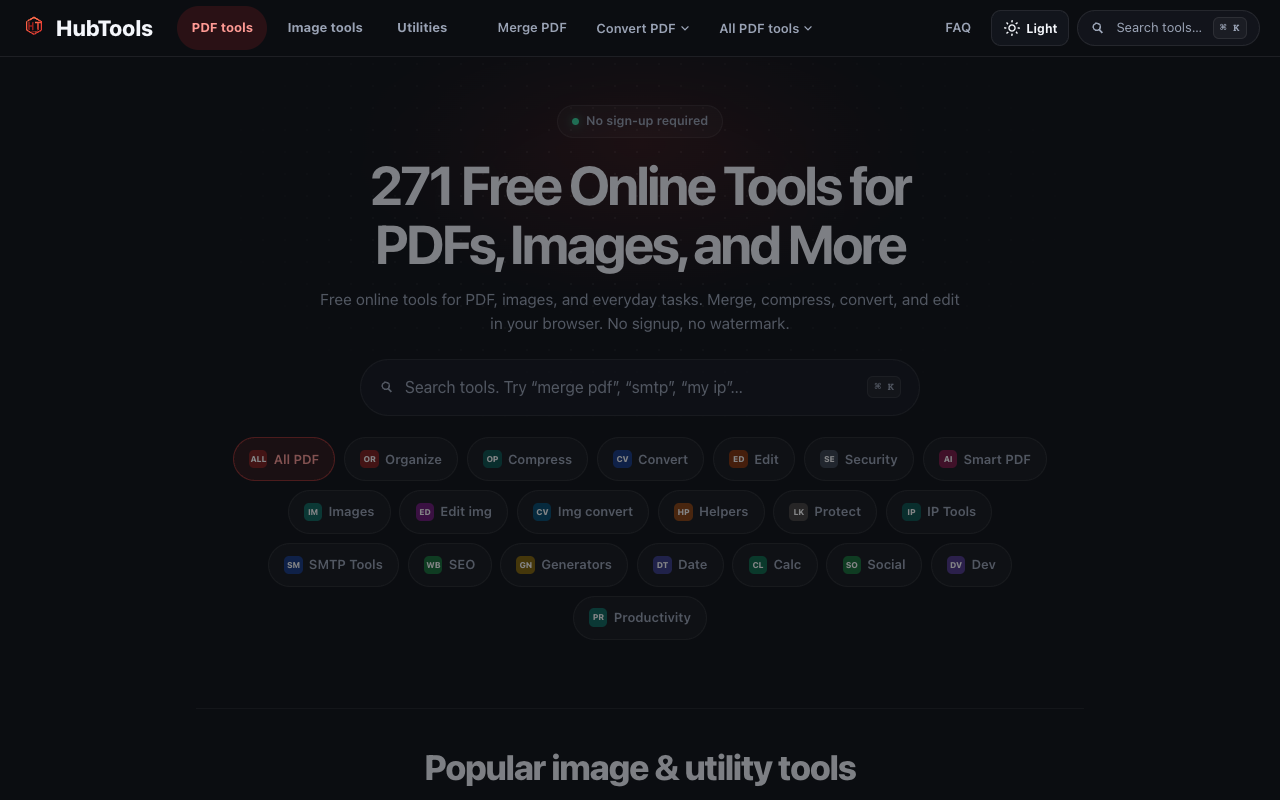
HubTools is free in your browser at hubtools.co. Open PDF Viewer for this job, or browse more PDF and file tools on the same site with no install.
Start here: https://hubtools.co/tool/pdf-viewer · All HubTools
Recommended HubTools
More free tools live at hubtools.co. Start with these:
Check your internet speed
When file tools feel slow, test the connection first. Run a free speed check on SpeedTesters (speedtesters.co) , then come back to this guide on How to View PDFs Online: Fast and Easy.
Comments